Uninstall a bench
Removing the application and wiping the bench’s own data are different acts. The application goes either way; of what the bench holds in its home folder — logs, installed modules, fleets, device configuration — you choose what goes with it. Whatever stays is found as it is by a later install. Runs on a shared disk are never removed.
Keep what you need first
Everything a bench is lives under its home, so copying that folder keeps the
bench: its fleets, its device .env files, its installed modules and its
history. On another machine, install PLESTY Bench, put the folder in place and
start the fleet (Device ▸ Fleet up, or plesty-server fleet up) — that is
how a bench moves to a new PC.
A fleet file alone is the portable half: it names modules and versions without
carrying them, and a bench installs what it needs on the first start. That is
the file to keep in a repository. The .env files, which carry addresses,
serial numbers and calibration, are the half that stays on the bench — and
nothing in them can be downloaded again.
Windows
Settings ▸ Apps (Apps & features) → PLESTY Bench → Uninstall, or Start ▸ Uninstall PLESTY Bench. The uninstaller asks once, on a list of what this bench holds, one row per item with its size:
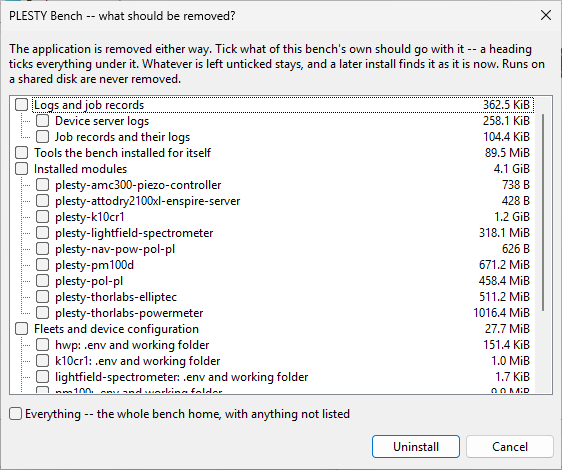
A heading ticks everything under it: Logs and job records, Tools the bench
installed for itself (the portable git), Installed modules, one row per
module, and Fleets and device configuration, one row per fleet, device and
the agent’s settings. Everything takes the whole bench home, with anything
the list does not name. Leaving every box unticked keeps all of the bench’s
data, and it is the default. When the application no longer starts, and so cannot say what it
holds, the uninstaller asks about the parts instead: logs (with the process
state and the portable git), modules, configuration, or everything.
Cancel keeps the application and every part of the bench, but by then the
uninstaller has already begun: the Start-menu entries and the Apps entry are
gone. Run setup.exe again to get them back, and to be able to uninstall
later.
macOS and Linux
plesty-server fleet down             # stop what the bench runs
plesty-server purge --all --yes      # optional: the bench's own data — see below
                                     # (or remove only part of it)
uv tool uninstall plesty-server
rm -rf ~/Applications/"PLESTY Bench.app"     # or the .desktop entry on Linux
Remove the data before uninstalling: purge is a command of the
application.
Remove only part of the data
plesty-server purge takes away parts of the bench, with or without
uninstalling — the same choice the Windows uninstaller offers:
plesty-server purge --list           # names, sizes, and what each one costs
plesty-server purge logs state --yes
plesty-server purge --all --yes
Part |
Holds |
Cost of losing it |
|---|---|---|
|
Device server logs, the traffic history read out of them, the record of past installs, updates and field-test runs |
History only |
|
Which servers this bench thought were running, on which ports |
Rebuilt at the next start |
|
Every installed module, its environment and any git checkout |
The largest part; means downloading them again |
|
The portable |
Fetched again when needed |
|
Fleets, the agent’s endpoint and token, and every device’s |
Nothing here can be downloaded again |
Each part can also be removed one item at a time. purge --list names the
items under the parts:
Item |
What it is |
|---|---|
|
The device server logs, or the job records and their logs |
|
One installed module, all its versions and its git checkout |
|
A device environment left by an older bench |
|
One fleet file in |
|
One device’s |
|
The agent’s endpoint and token |
|
The runs of one experiment kept in the home (see below) |
plesty-server purge fleet:trial.yaml device:anc300 --yes
A single installed module goes more simply from the console: Hub ▸ Installed modules… ▸ Uninstall.
No part touches runs/, where experiment runs land when their module
declares no shared data root: a measurement is what the operator came for, and
clearing working files must not reach it; only a runs:<experiment> item
named on its own does. Runs on a shared disk are never removed. Nor does any
part take peers.yaml, a master’s list of benches with their tokens. --all
removes the home folder itself, and both with it.
Stop the fleet first (plesty-server fleet down): a running server holds its
environment open.
--yes is required for anything destructive, and an unknown part name is
refused before anything is removed rather than after — a typo must not
silently keep data somebody asked to be rid of. A file that will not delete is
reported and the rest still goes: an uninstall that stops at the first locked
file leaves more behind than one that carries on and says what it could not
take.