The Experiments tab
The tab in front when the console opens. One row per run — one measurement, in a folder of its own — and below it the selected run: its buttons and four panes. How to take an experiment from installed to measured is Run an experiment.
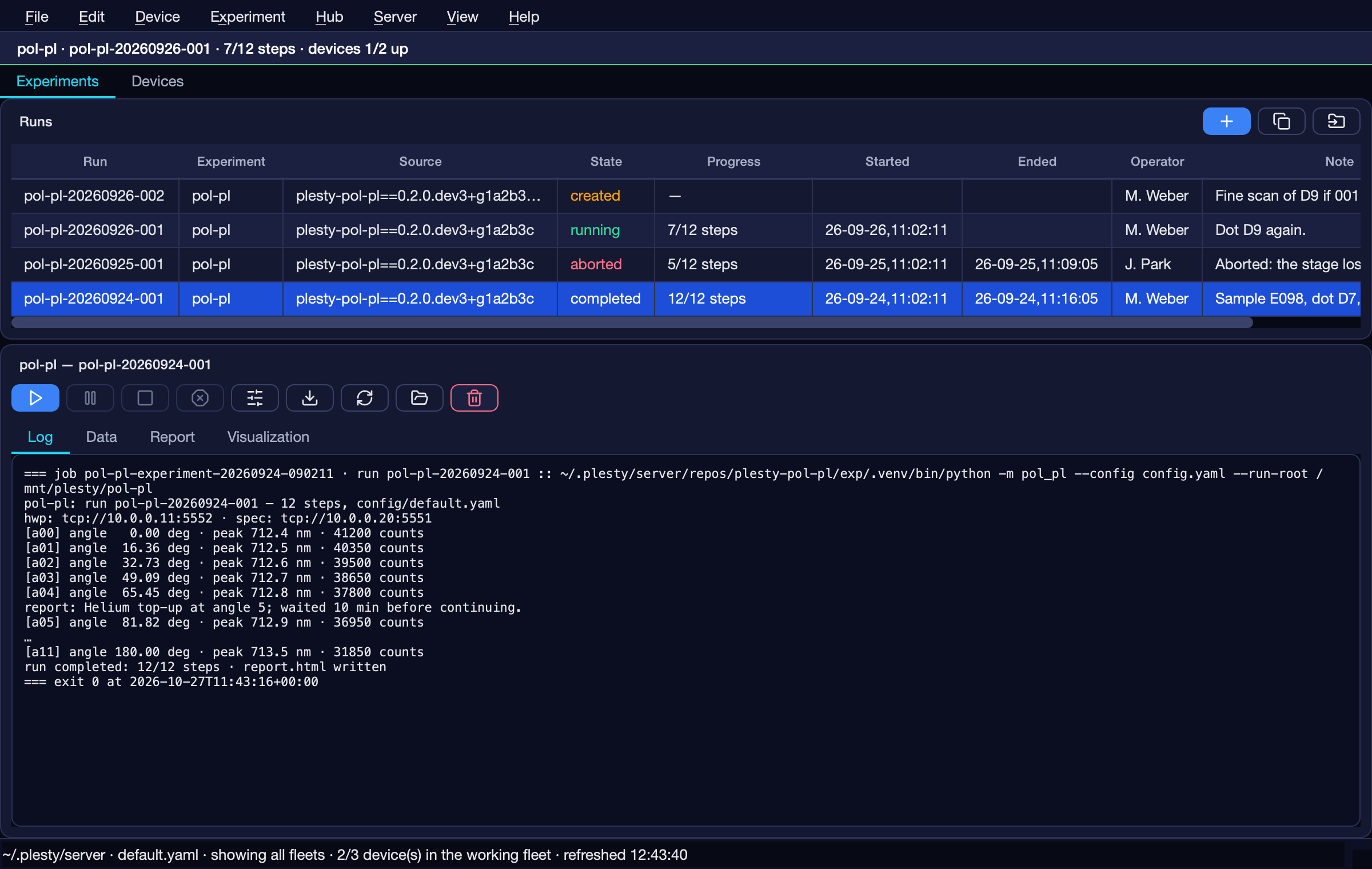
The Experiments tab, with a completed run selected.
The Runs card

Column |
Shows |
|---|---|
Run |
The run’s name — also the name of its folder. |
Experiment |
The experiment it belongs to. |
Source |
The module version it runs. |
State |
|
Progress |
Steps done of the plan’s total — |
Started, Ended |
When, as |
Operator |
Who measures it, as entered in Create run. |
Note |
The first line of the run’s latest note — see Experiment ▸ Add note…. |
An experiment with no run yet has a row of its own. Double-click a row to configure it.
Button |
Icon |
Does |
|---|---|---|
Create |
|
Name a new run and choose its configuration, without starting it — see below. |
Duplicate |
|
A new run repeating the selected one, with the settings it used. |
Load |
|
Show a run measured elsewhere, from its folder. Nothing is copied. |

Create run
Create  opens Create run.
The run is created, not started: Run
opens Create run.
The run is created, not started: Run  starts it.
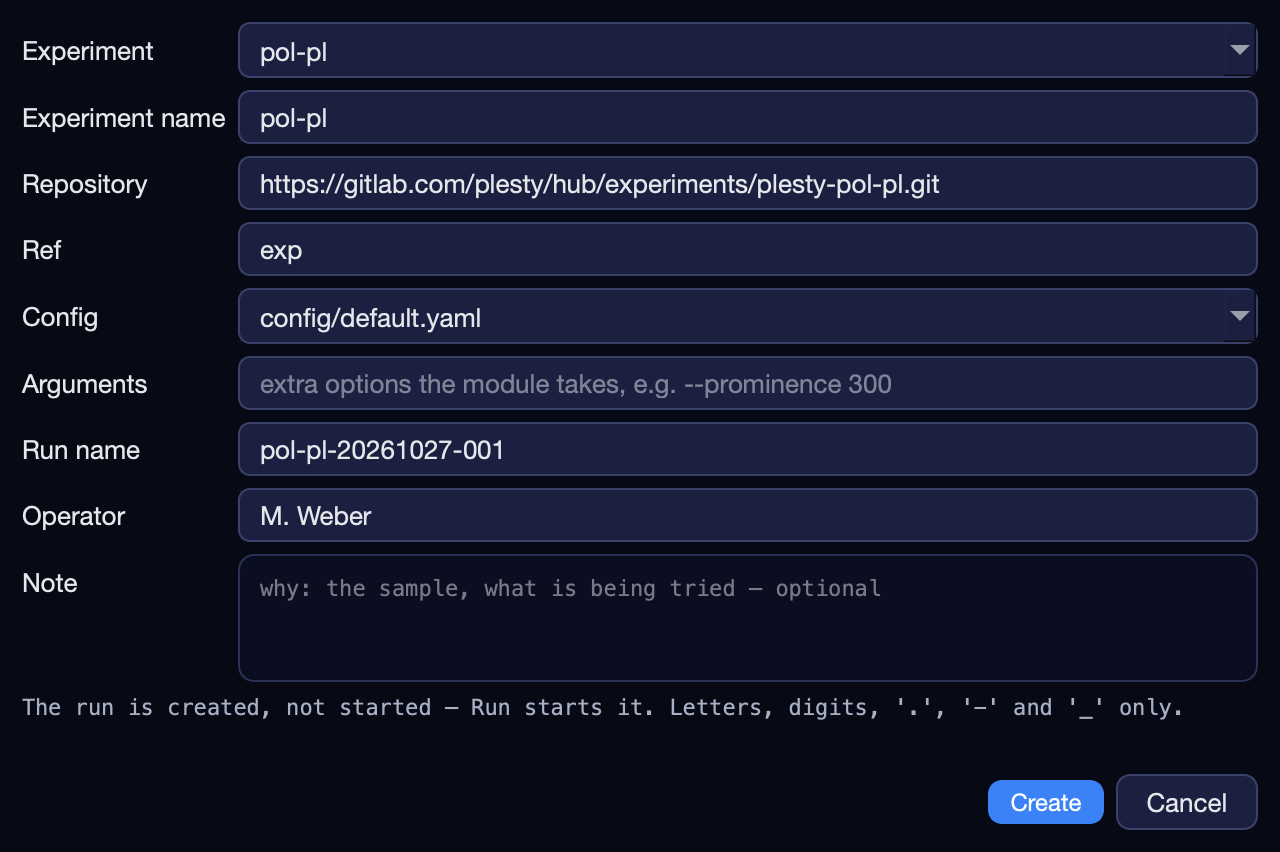
Field |
Means |
|---|---|
Experiment |
A declared experiment, an installed one not yet declared (it is declared for you), or a folder loaded with Hub ▸ Load from…, shown as |
Experiment name, Repository, Ref |
The experiment’s declaration. |
Config |
The configuration file the run starts from. It is copied into the run’s folder, so changing it later changes nothing for this run. |
Arguments |
Extra arguments for the experiment module. |
Run name |
The run’s name, and its folder’s. Letters, digits, |
Operator |
Who measures it. Required; proposed from the last run created on this bench. Kept in the run’s folder ( |
Note |
Why: the sample, what is being tried. Optional. It is the first entry of the run’s |
The run card
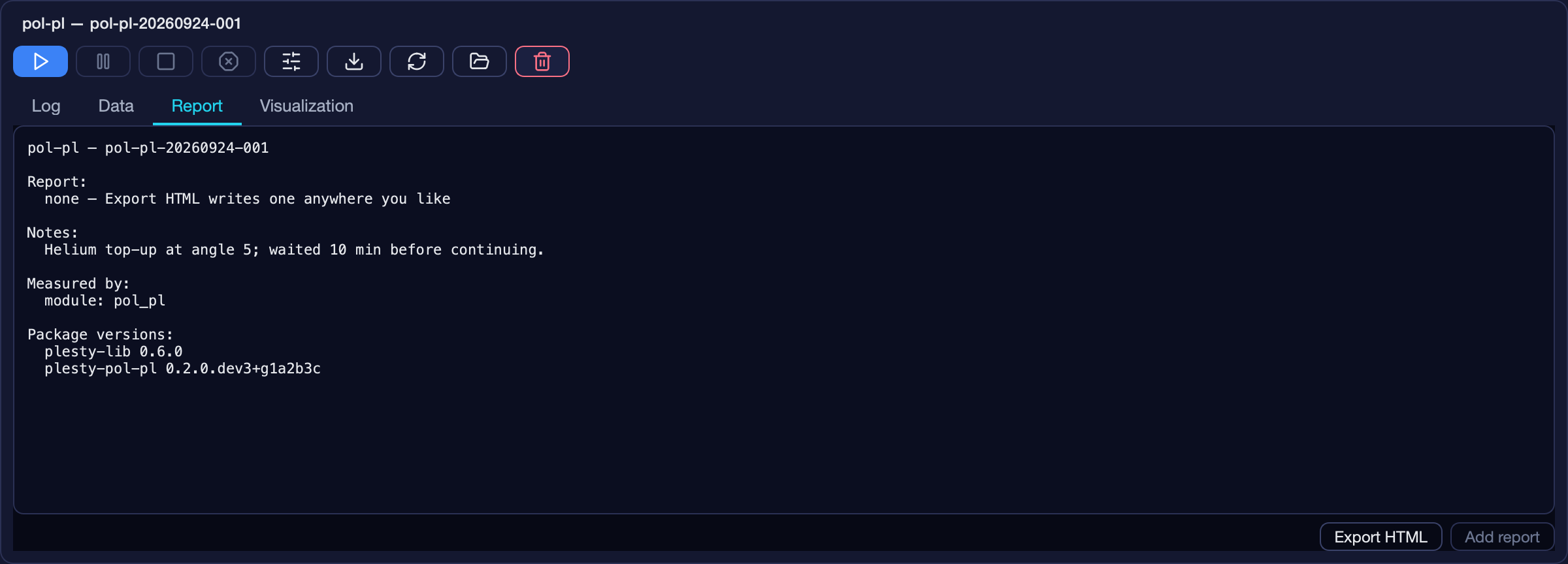
The title names the experiment and the run — and, after Pause or Stop, that the request is waiting for the step in flight to finish.
Button |
Icon |
Does |
Available when |
|---|---|---|---|
Run |
|
Start the run (Ctrl+Shift+R) — see below. On a stopped or aborted run it reads Resume and continues, skipping the steps already done. |
the run is not going |
Pause |
|
Hold before the next step, keeping the instruments connected and where they are. Reads Continue while paused. |
the run is going |
Stop |
|
Let the step in flight finish, then stop. Nothing is lost. |
the run is going |
Abort |
|
Stop now. The unfinished step runs again on Resume. |
the run is going |
Configure |
|
This run’s settings and the experiment’s device setup — see below. |
a run of this bench is selected |
Install |
|
Install the experiment module, as a job. |
same |
Update |
|
Pull and reinstall the experiment module, as a job. |
same |
Open run |
|
Open the run’s folder in the file manager. |
the run has a folder |
Delete run |
|
Delete the run and its data, after a confirmation. For a loaded run it only stops showing it. |
the run is not going |


Pause, Stop and Abort all wait for a step boundary — a step either commits whole or not at all — so a request made during a long exposure is pending, not ignored.
Starting a run
Run first opens each
instrument the experiment needs, on its bench — seconds of hardware per
instrument — and a small window names the one being opened. Closing that
window stops nothing: the run starts either way, and the Devices tab shows
what each instrument is doing. What happens in those seconds is
What Run does.
Configure
Configure  , Experiment ▸
Configure…, or a double-click on a run opens its configuration. Two tabs;
Save writes both.
, Experiment ▸
Configure…, or a double-click on a run opens its configuration. Two tabs;
Save writes both.
Above the tabs, a run’s Run name: change it before the run starts and its folder, its configuration and a duplicate of it follow the new name. A name an earlier run had is refused, and a name that is refused leaves the run as it was. A started run keeps its name.
Experiment Config — the settings the experiment module declares, as a form: a box per group, a spin box with its unit for a number, a drop-down for a choice, rows with + and − for a list. Grey text in an empty field is the default. Config file switches between the module’s configuration files; Edit YAML… opens the file itself.
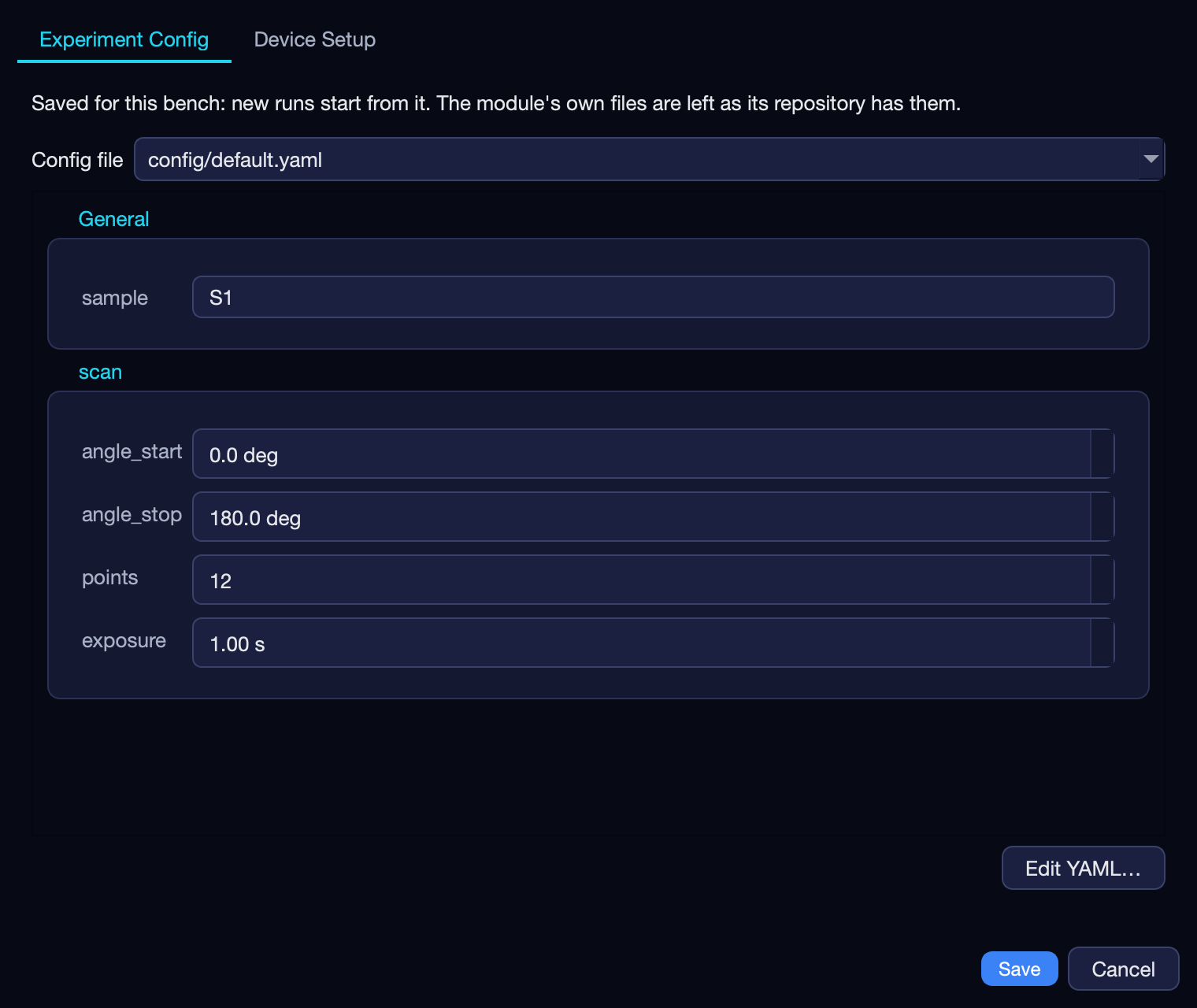
Which file it edits depends on what is selected:
a created run — that run’s own copy, and nothing else;
a run that has started — shown read-only: its plan was built from it. Duplicate
 the run to
measure again with changes;
the run to
measure again with changes;an experiment with no run — this bench’s own copy of the file (
<home>/run/<experiment>/config/…), which new runs start from. The module’s files are never written: they change only through its repository.
Save changes only the values you edited, each on its own line, so the file’s comments and layout stay as they were.
Device Setup — the benches the experiment runs across and the devices on each. What it means is in Run an experiment.
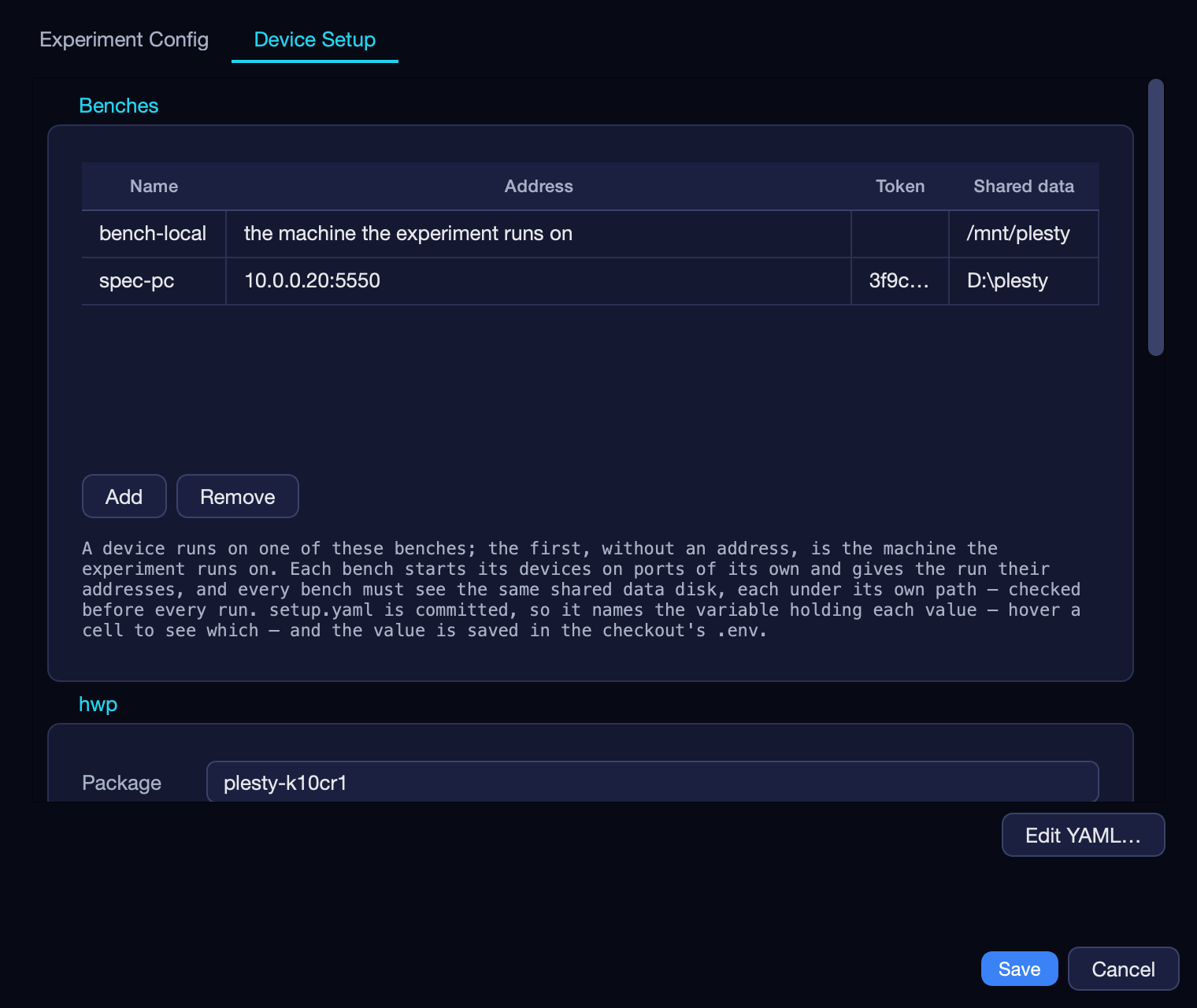
Benches — a row per bench: Name, Address of its agent, Token, and Shared data — where that bench sees the lab’s shared disk. The first row is the machine the experiment runs on. Add and Remove change the list; hovering a cell shows the variable its value is saved under.
A group per device: Package, Host (which bench runs it), Repository, Ref, Version, Arguments, Autostart and Environment.
The panes
A run that has not started has nothing in any pane yet.
Log
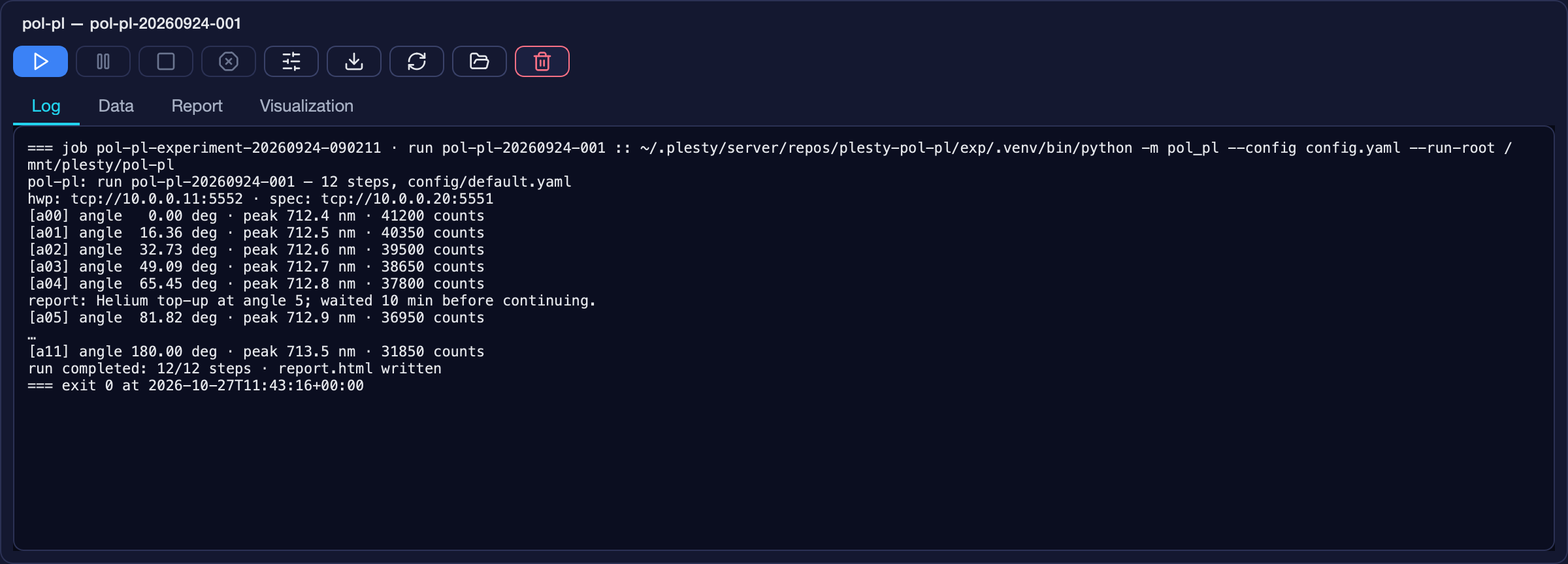
The output of the run’s job on this bench. When this bench has no job for the
run — it was measured on another bench, or an uninstall emptied this one’s
home — the pane shows the copy the run kept in its job-logs/ folder.
Data
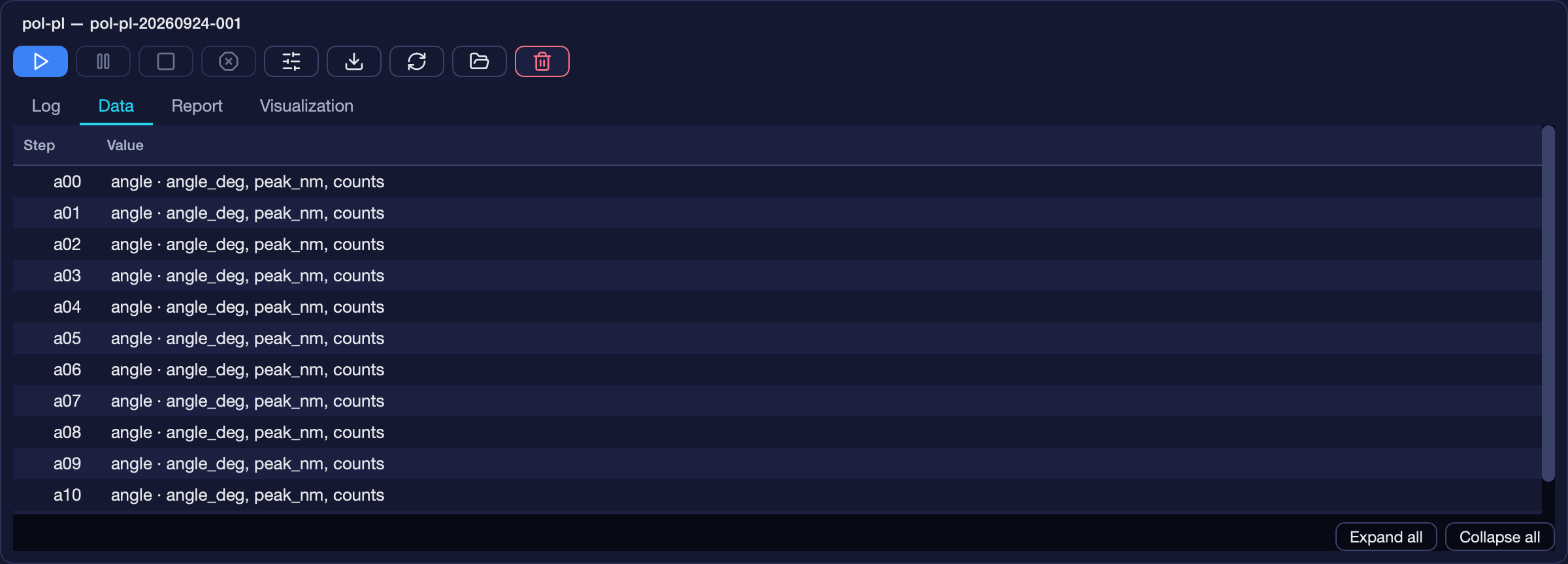
The last 50 records the run has committed, one row per step; open a row to
see its values. 
 open or close
every level.
open or close
every level.
Report
Report — the
report.htmlthe run wrote into its folder when it ended, when and how big.Notes — what the operator recorded during the run.
Measured by, Package versions — what produced the data.
Two buttons at the bottom:
Export HTML asks where to save, and writes the run’s report there — data, analysis, notes and device setup in one file.
Add report asks What happened? and records the answer in the run’s journal, between the steps it happened between: a helium top-up, a realignment. Available while the run is going; Experiment ▸ Report… does the same.
What the report contains is in Run results.
Visualization
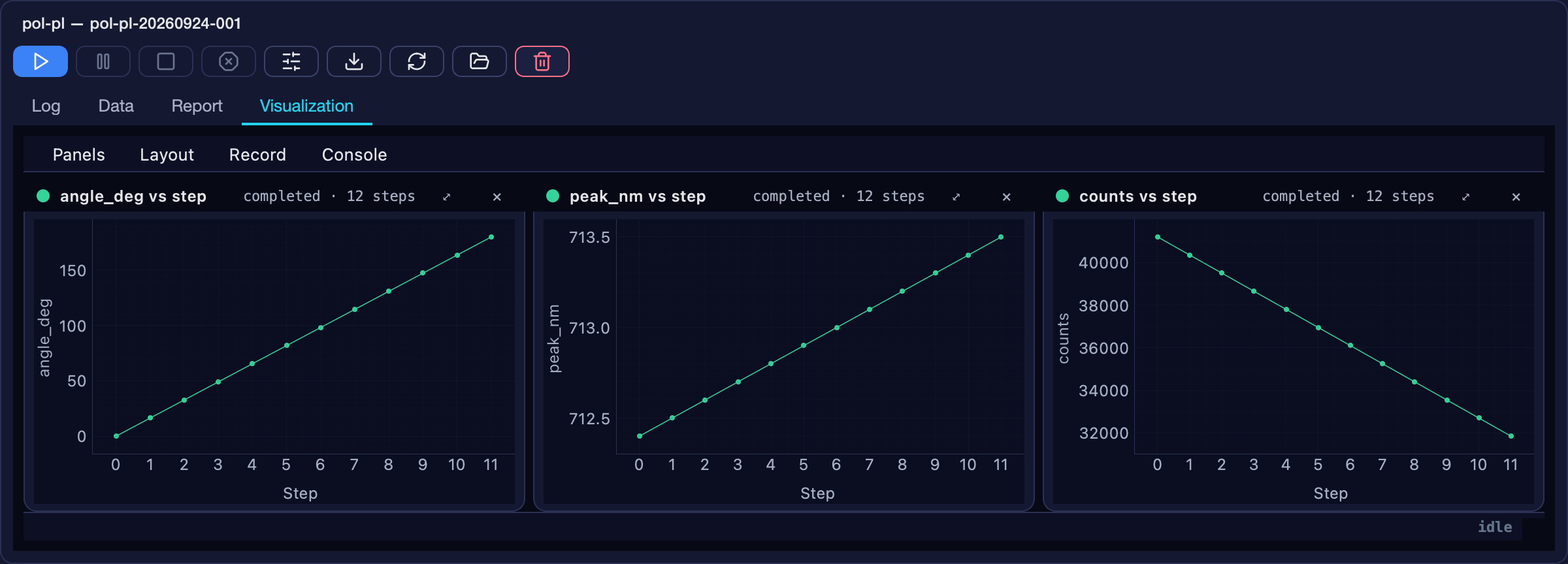
The experiment’s own views of the run, when its module declares them; otherwise plots of the run’s recorded numbers.
Open in its own window runs the module’s viewer as a separate program — the way in when the console cannot load the views itself, which the pane then explains.
On the views’ own menu bar, Console ▸ Open these views in a window floats them all out of the pane; Bring the views back here returns them.