Report an issue
When the bench does something wrong — a device that will not start, an install that fails, a run that stops — the console writes the report for you: what this bench is, what it holds and the end of its logs, the answers to the first questions a maintainer would ask. You read it, and you file it yourself: the bench sends nothing.
Write the report
Help ▸ Report a problem….
Title: one line, what went wrong.
What happened: what you were doing, what you expected, what happened instead. A step you can repeat is worth more than a long description.
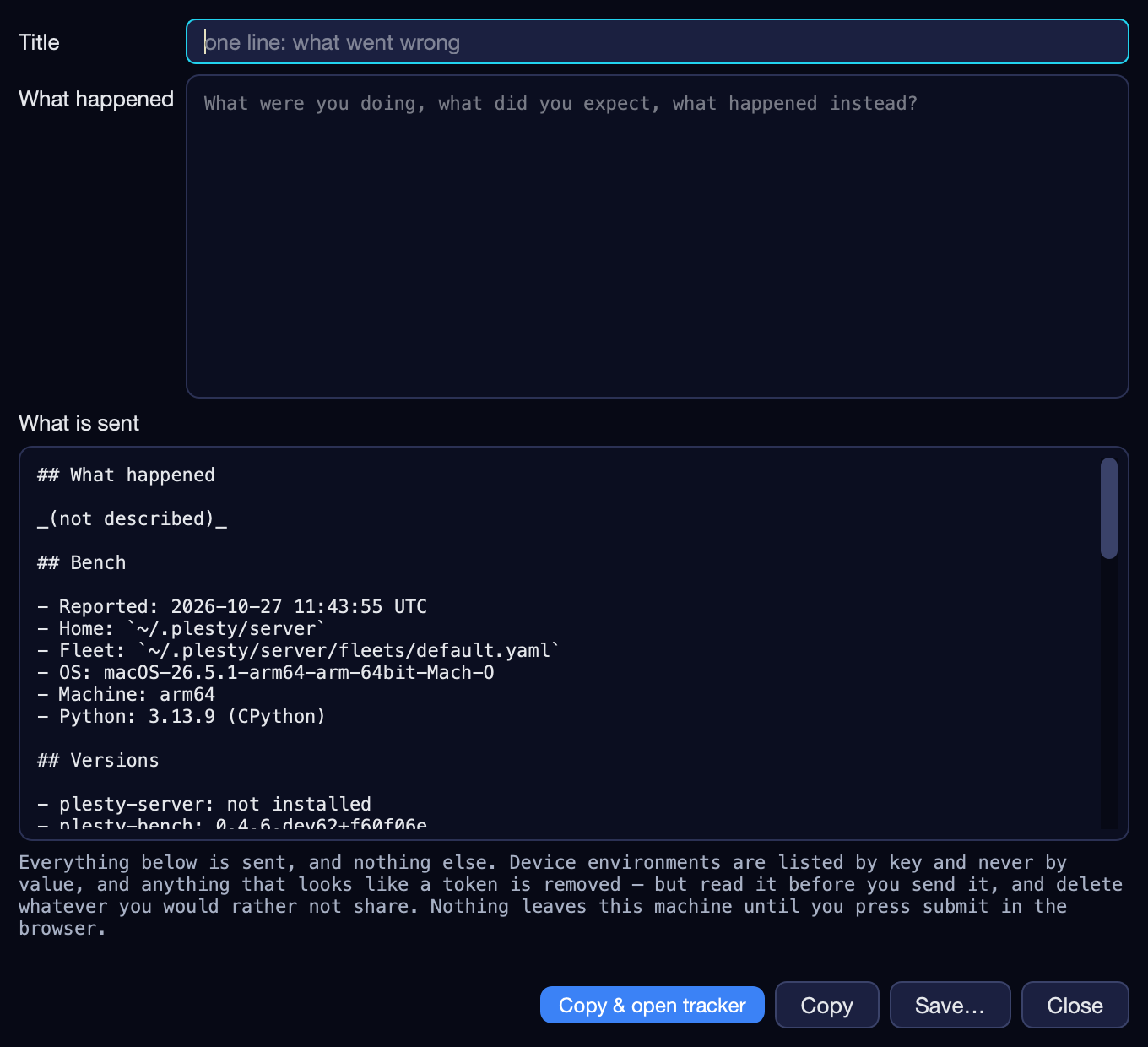
What is sent shows the whole report as it will be posted:
Section |
Holds |
|---|---|
What happened |
Your description. |
Bench |
When it was reported, the home folder and fleet file, the operating system, the machine and the Python. |
Versions |
The installed |
Devices |
Each device this bench declares: its module and installed version, its state and port, and the names of the variables its declaration sets. |
Logs |
The last 80 lines of each device’s log. |
Those variables are listed by name only, never with their values, and
anything that looks like a token or a password is replaced by <redacted>,
your own text included. Read it anyway, and delete whatever you would rather
not share — a sample name, an address — before you send it.
Send it
Copy & open tracker puts the report on the clipboard and opens a new issue on PLESTY Bench’s tracker in your browser, with the title filled in, and the report too when it is short enough to travel in the link. Otherwise paste it. Check it, and submit it as yourself.
You must be signed in to a gitlab.com account in that browser to file it. Otherwise GitLab opens its sign-in page instead of the new issue: sign in (or create an account), then press Copy & open tracker again.
Copy or Save… keep the report, for a PC without a browser or for sending it another way.
A problem with one instrument’s module rather than with the bench — a reading that is wrong, an operation that fails on the instrument — belongs to that module’s own tracker. The Hub names where each module lives (Hub ▸ Browse…), and Declare device shows it under Project.
Before you report
The Log pane of the device, or of the run, often says why at once — see When a device will not start.
A failed install or update ends in a red message in the status line with the last line its job wrote; the whole job log is on the device’s Jobs pane.
Help ▸ About names the version you run; an upgrade may already have the fix — see Upgrade a bench.