The Devices tab
One row per device this bench runs, and below it the selected device: its buttons and five panes.
The Devices card

Column |
Shows |
|---|---|
Fleet |
Which of this bench’s fleets declares the device, and a check box. Checked devices are the working fleet: the ones Fleet up |
Name |
The device’s name on this bench. It also names its log and its folder. |
Host |
this bench, or the name of the other bench it runs on — see Several benches. |
Source |
What it runs: |
State |
|
Port |
The TCP port experiments connect to. |
PID, Started |
The server process, and when it started. |

Double-click a row to open Device config. Right-click for the same actions as the Device menu.
The buttons in the card’s header act on the whole bench:
Button |
Icon |
Does |
|---|---|---|
Declare |
|
Add a device to the fleet — see below. |
Fleet up |
|
Install what is missing and start every checked device. |
Fleet down |
|
Stop every server running here, checked or not. |
Control |
|
Open the Control window with a panel for every running device — see below. |
Refresh |
|
Re-read the bench now (F5). |


Declare device
Declare  , or Device ▸ Add
device… (Ctrl+N), opens Declare device: a new device in the fleet file.
On a bench with no module installed yet it first offers to open
the Hub.
, or Device ▸ Add
device… (Ctrl+N), opens Declare device: a new device in the fleet file.
On a bench with no module installed yet it first offers to open
the Hub.
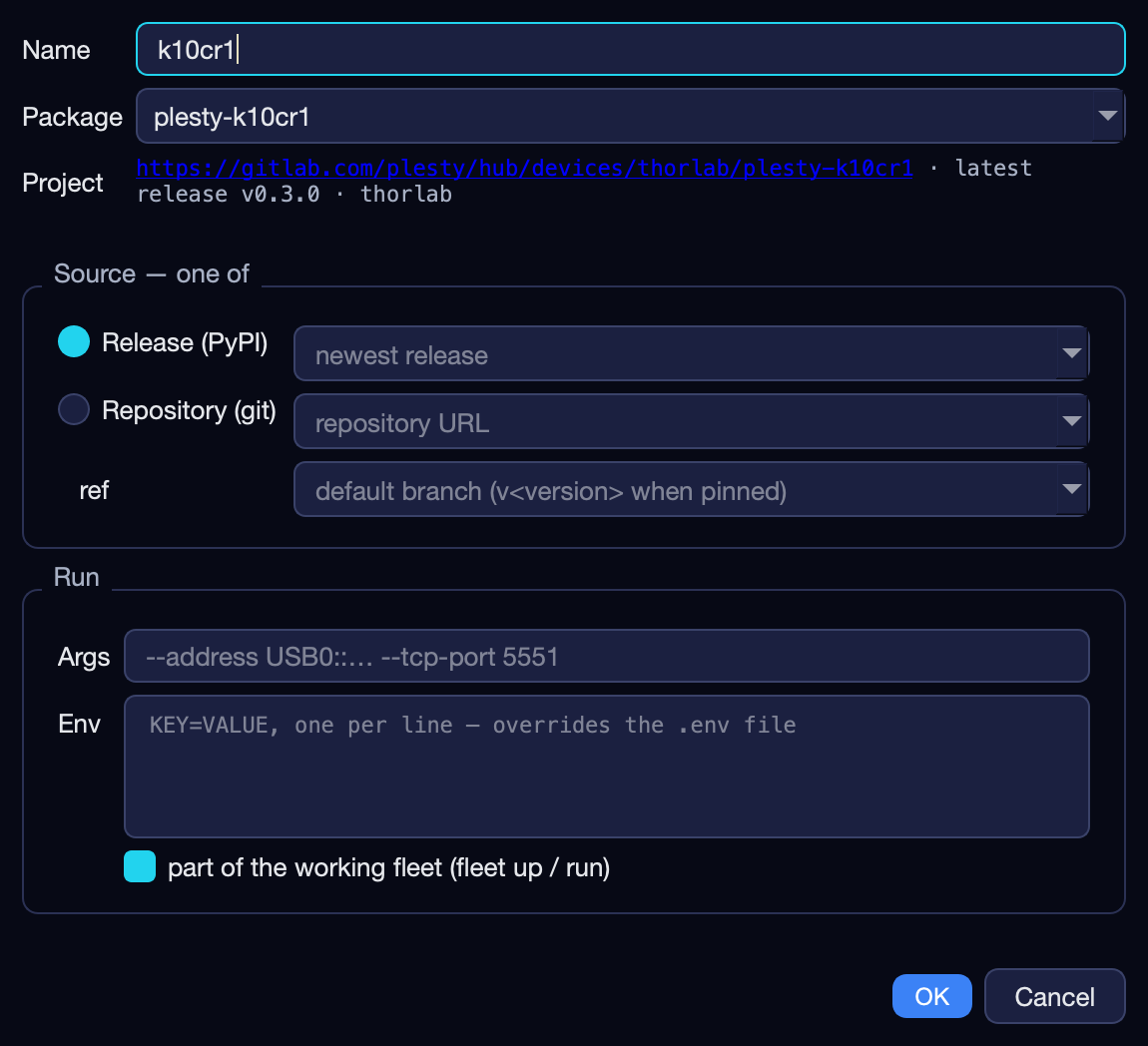
Field |
Means |
|---|---|
Name |
The device’s name on this bench — proposed from the package. It names its log and folder, so it must be unique across all the bench’s fleets. |
Package |
Which installed module runs it. Only installed modules are listed, and of those only device modules and modules whose kind is not known yet. |
Project |
Where the module lives, its latest release and vendor — for reference. |
Source — one of |
Release (PyPI) with a version (empty = the newest), or Repository (git) with a repository and a ref (branch, tag or commit). The drop-downs list every release on PyPI and every release tag of the repository, newest first. Pick a repository when you want field tests — a release does not carry them. |
Args |
Passed to the device server — usually how it finds the instrument, such as |
Env |
|
part of the working fleet |
Ticked: Fleet up |
OK writes the device into the fleet file that is open — on a new bench,
<home>/fleets/default.yaml.
Control — the Control window
Control  on this card, or
View ▸ Control window, opens a window with a panel for every running
device — driving instruments by hand: read their values, set them, press
their operations. Control
on this card, or
View ▸ Control window, opens a window with a panel for every running
device — driving instruments by hand: read their values, set them, press
their operations. Control  on a device’s own card, or Device ▸ Control… (Ctrl+D), opens that device
alone, in a window of its own.
on a device’s own card, or Device ▸ Control… (Ctrl+D), opens that device
alone, in a window of its own.
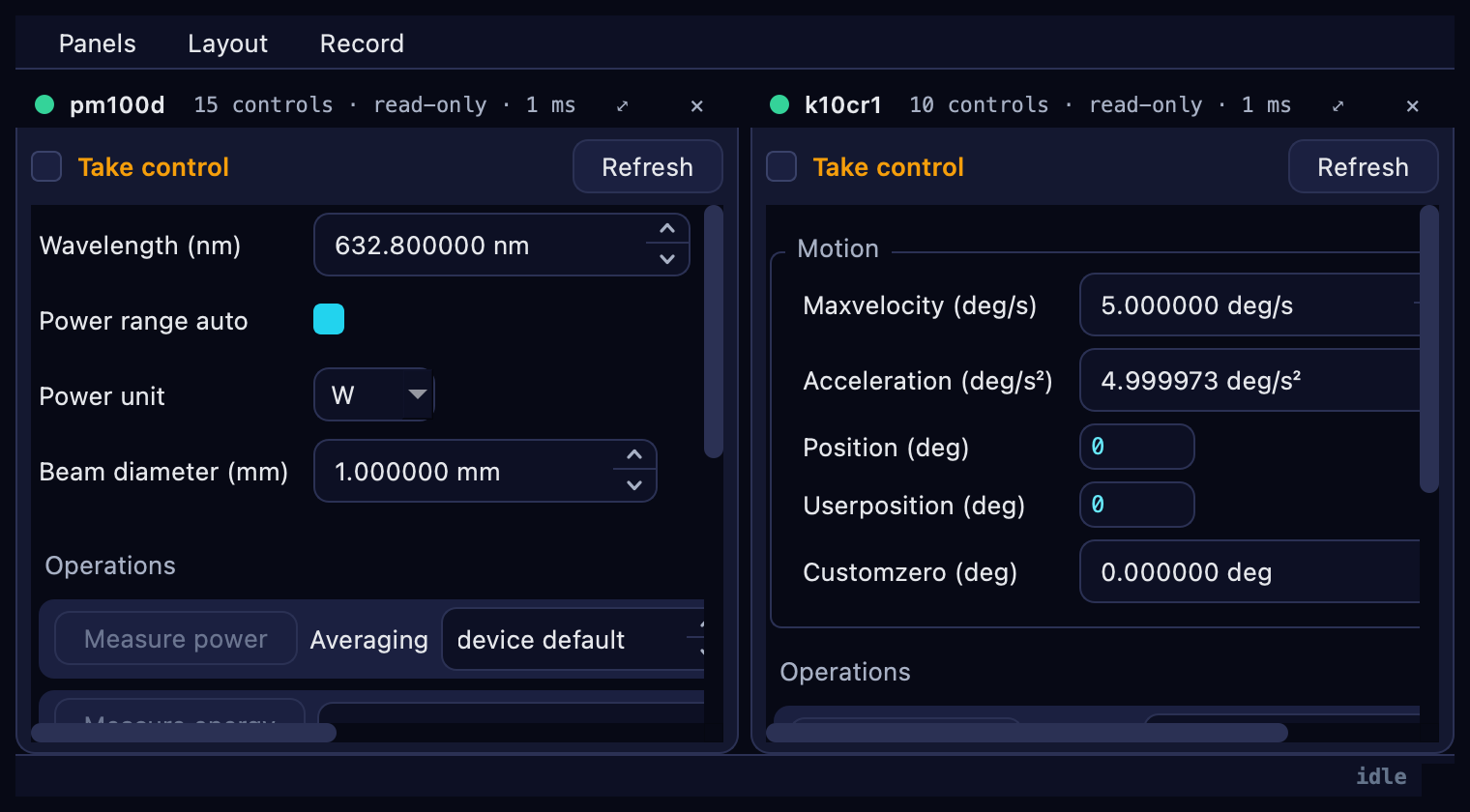
Each panel is built from what its device reports about itself — its parameters with their units, limits and choices, and its operations — so a power meter shows its wavelength and power range, a rotation stage its position and velocity, without anything written for either. Operations such as homing or a reset are left off.
Tick Take control. Until then the panel only reads: something may be measuring with that instrument right now, and the console would be a second client on it.
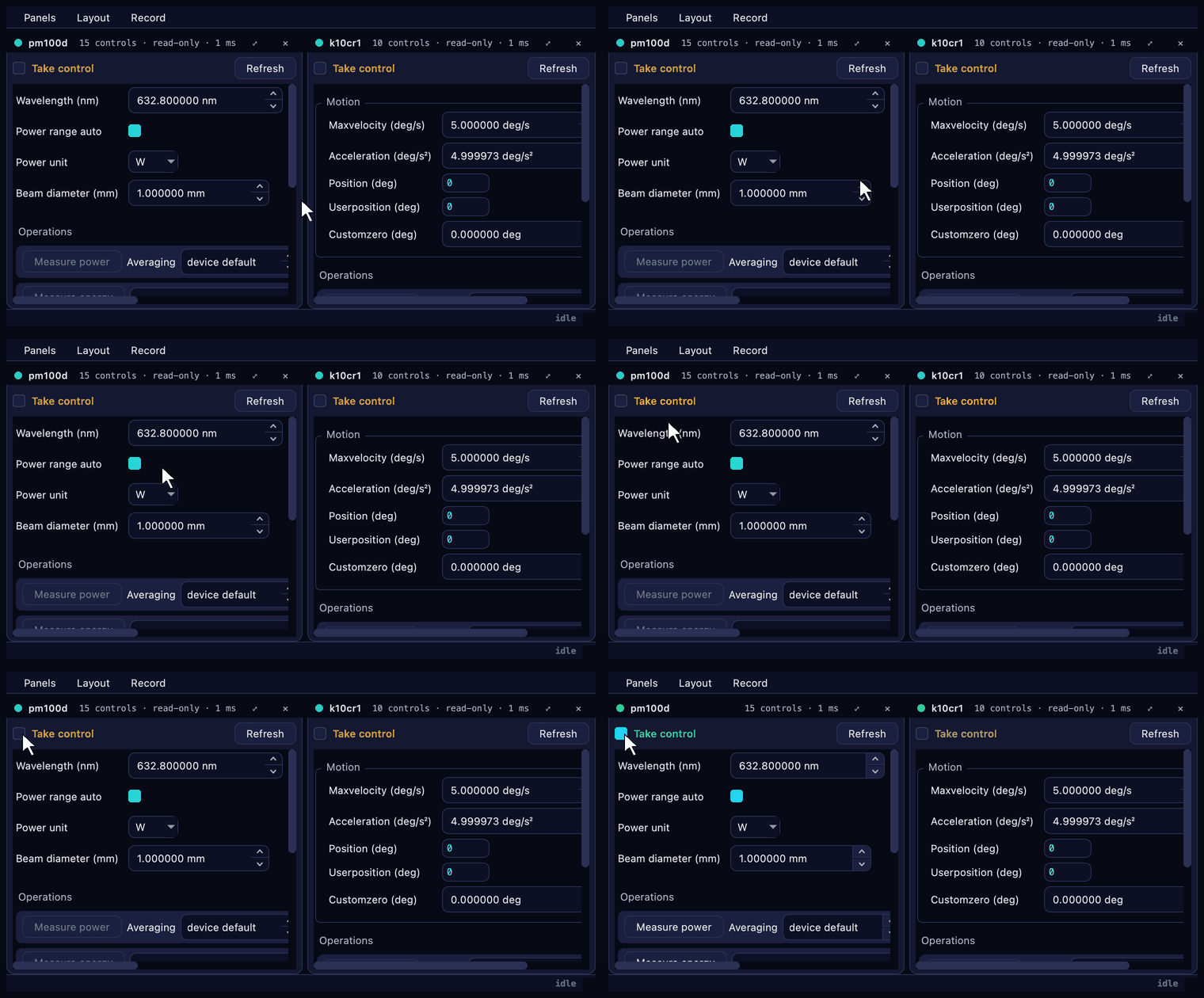
Change a value — the field will not go past what the instrument accepts — or press an operation’s button.
Refresh reads every value once.
The line at the top of each panel counts its controls and says whether it is
read-only. Only a device whose server answers can be controlled; asking twice
for one brings its panel forward rather than opening a second. A device that
stops keeps its panel, marked as stopped. Panels dock, stack as tabs, or drag
out onto a second screen; the Panels and Layout menus show, hide and
reset them. The same panels open on another computer with
plesty-bench control.
The device card
The buttons act on the selected device. A button that cannot act right now is greyed out, and hovering over it says why.
Button |
Icon |
Does |
Available when |
|---|---|---|---|
Start |
|
Start the device server (Ctrl+R). Installs it first if needed, then waits until it answers. |
it is not running |
Stop |
|
Stop it (Ctrl+T): asks it to close the instrument first, then insists. |
it is running, or exited |
Restart |
|
Stop and start again. |
it is installed |
Control |
|
This device’s panel, in a window of its own (Ctrl+D) — see the Control window. |
the server answers |
Edit |
|
Its declaration and |
it is on this bench |
Install |
|
Create its environment, as a job. |
always |
Update |
|
Pull a checkout and re-sync it, or reinstall a release, as a job. |
it is installed |
Field Test |
|
Run its field test (Ctrl+F) — see below. |
it is installed from a repository that has a field test |
Clear log |
|
Empty its log — and with it the Traffic pane. |
it is on this bench |
Uninstall |
|
Stop it and remove its environment. |
it is installed here |
Remove |
|
Drop it from the fleet. Its environment stays. |
it is on this bench |


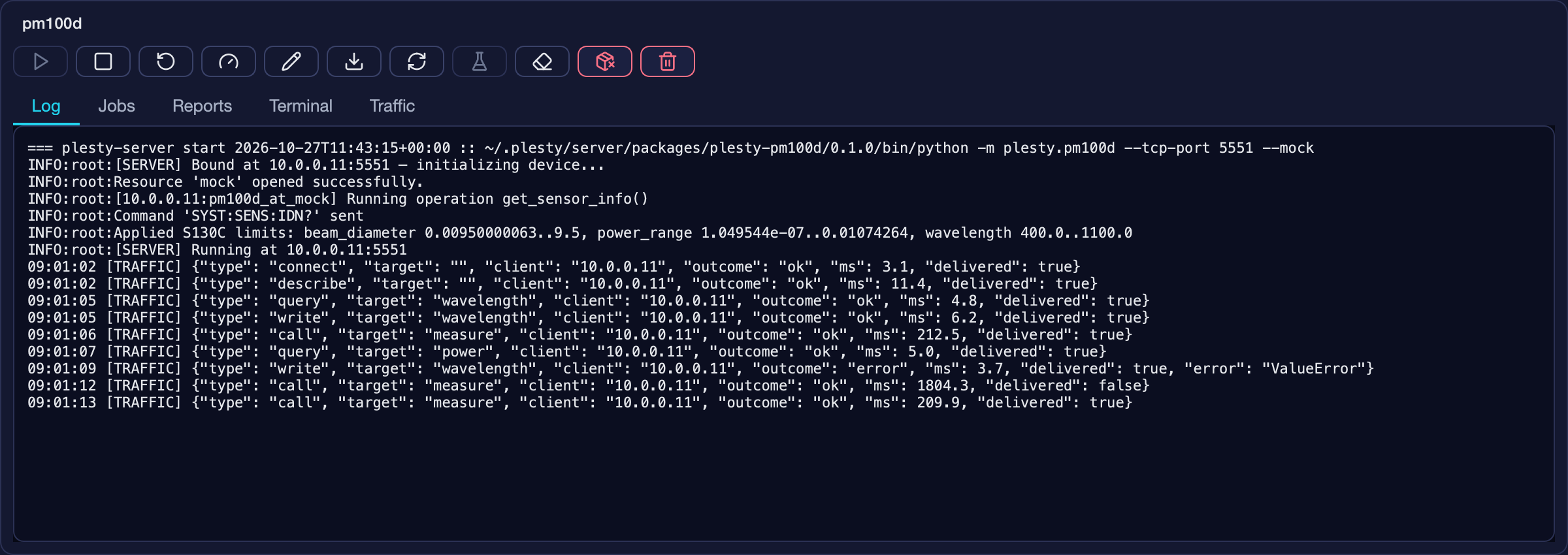
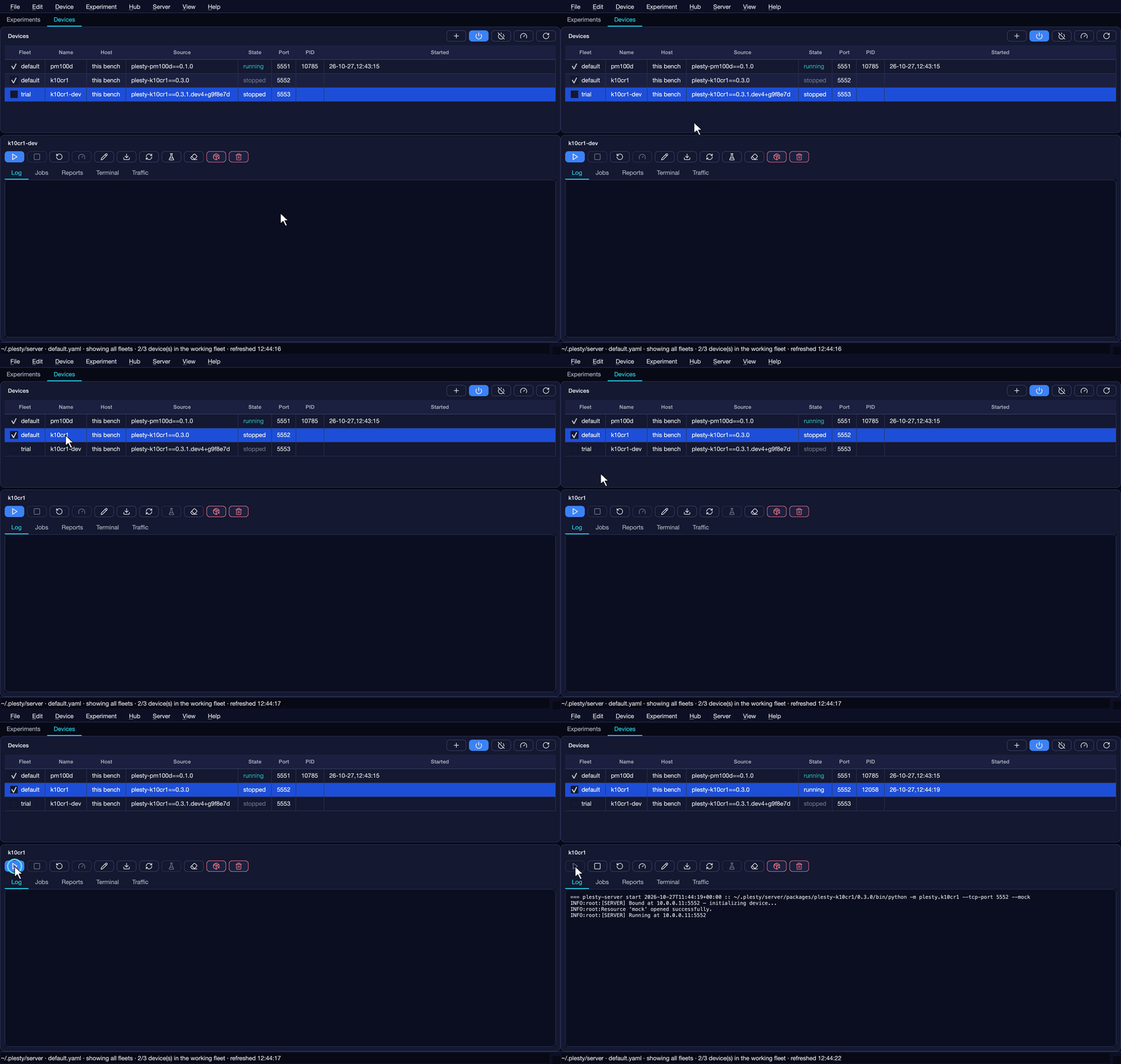
Starting a device — select its row, press Start, and watch the state go
from stopped to running as the log fills:
For a device on another bench, Edit, Clear log, Uninstall and Remove are done on that bench, and the five panes below are empty: each reads a file on the bench that runs the device.
Edit — Device config
Edit  , Edit ▸ Device
config… (Ctrl+E), or a double-click on the device’s row, opens Device
config. Two tabs; Save writes both.
, Edit ▸ Device
config… (Ctrl+E), or a double-click on the device’s row, opens Device
config. Two tabs; Save writes both.
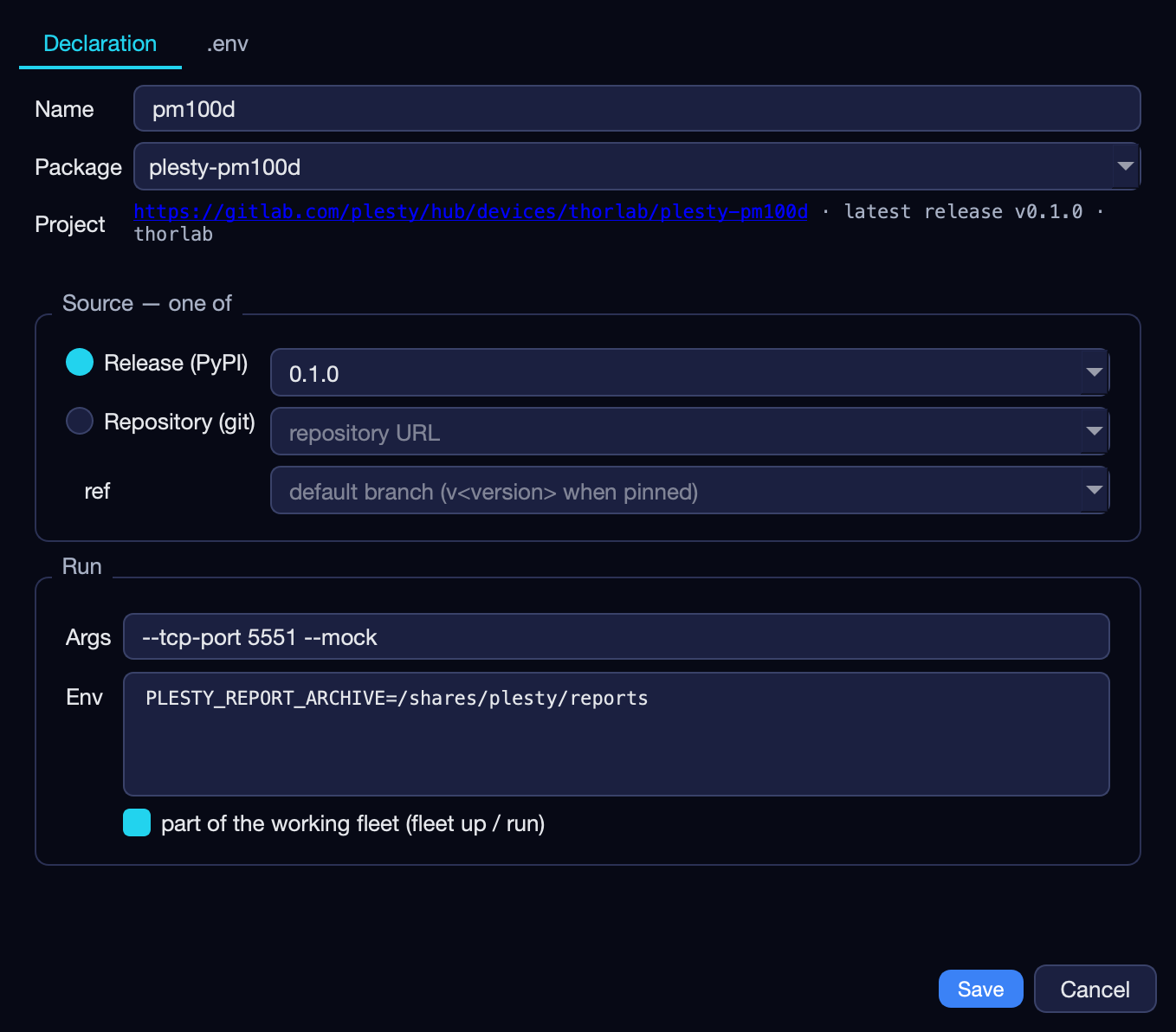
Declaration — the same fields as Declare device. Changing the Name renames the device: its
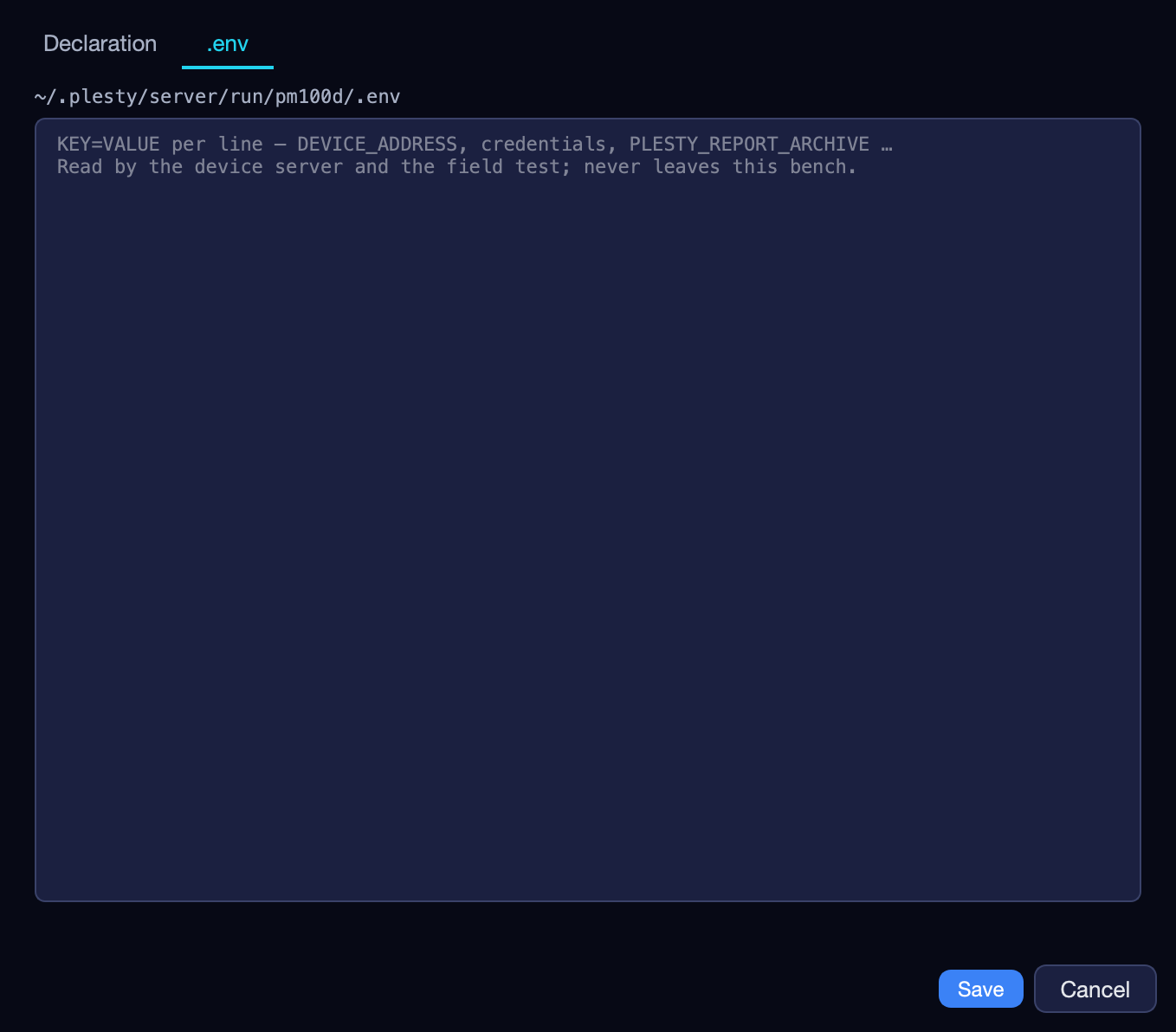
.envand its log move with it. Stop it first..env — this device’s own settings, one
KEY=VALUEper line: an address, a serial number, a calibration constant. It stays on this bench and is read by the server and by its field tests.
Field Test
Field Test  , or
Device ▸ Field Test… (Ctrl+F), opens Field test for a device installed
from a repository. Run starts the test as a job and follows it; the
result lands in the Reports pane. The walkthrough is
Field-test a device.
, or
Device ▸ Field Test… (Ctrl+F), opens Field test for a device installed
from a repository. Run starts the test as a job and follows it; the
result lands in the Reports pane. The walkthrough is
Field-test a device.
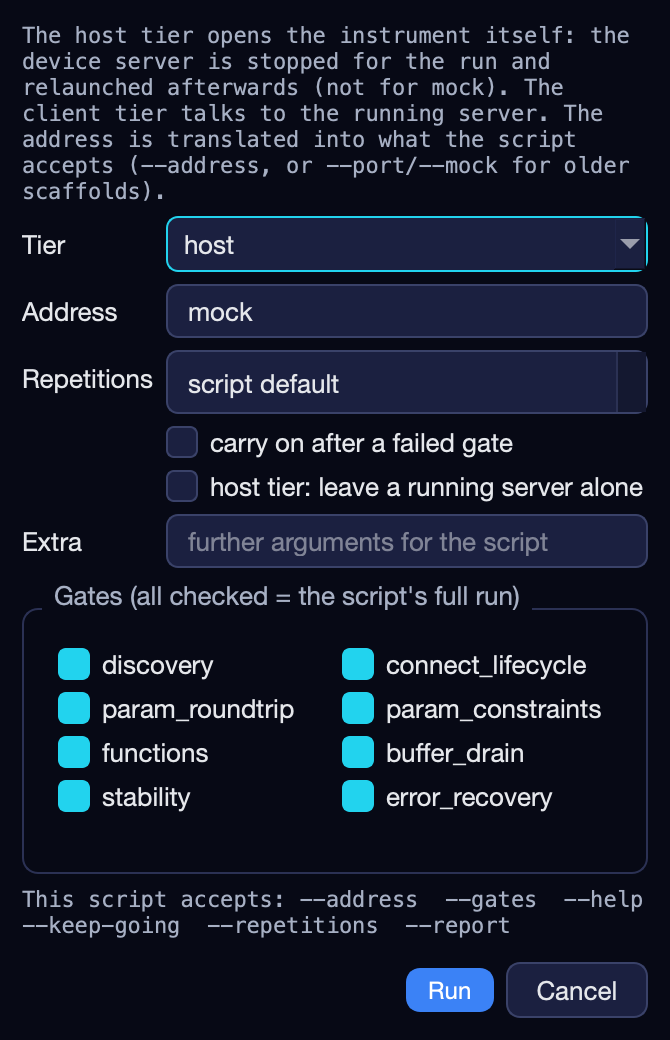
Field |
Means |
|---|---|
Tier |
host tests the module against the instrument: the device server is stopped for the run and started again afterwards. client tests through the running server, the way an experiment reaches it. |
Address |
The instrument to test — |
Repetitions |
How often each measuring gate repeats; script default leaves it to the script. |
carry on after a failed gate |
Run the remaining gates anyway. |
host tier: leave a running server alone |
Do not stop the server — only sensible with |
Extra |
Further arguments for the module’s own script. |
Gates |
Which checks to run. All ticked is the full test. The line below lists what this module’s script accepts. |
The panes
Log
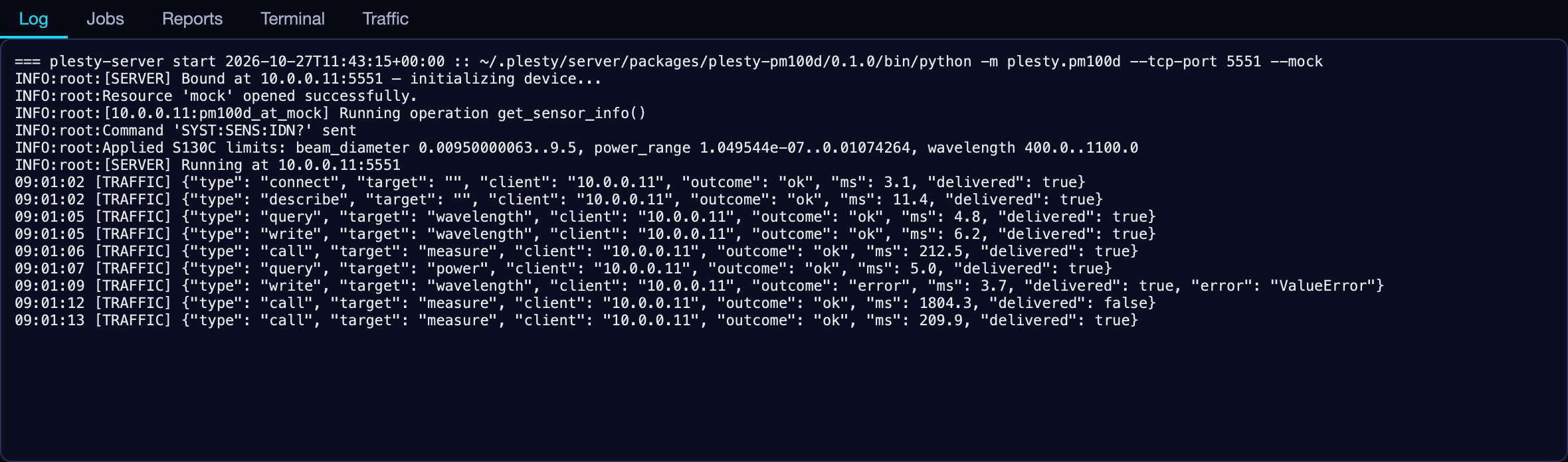
The last 200 lines the device server printed. Each start writes a new log,
which opens with a === plesty-server start … line naming the exact command;
Clear log  starts another
while the server runs. The earlier files stay in
starts another
while the server runs. The earlier files stay in logs/.
Jobs
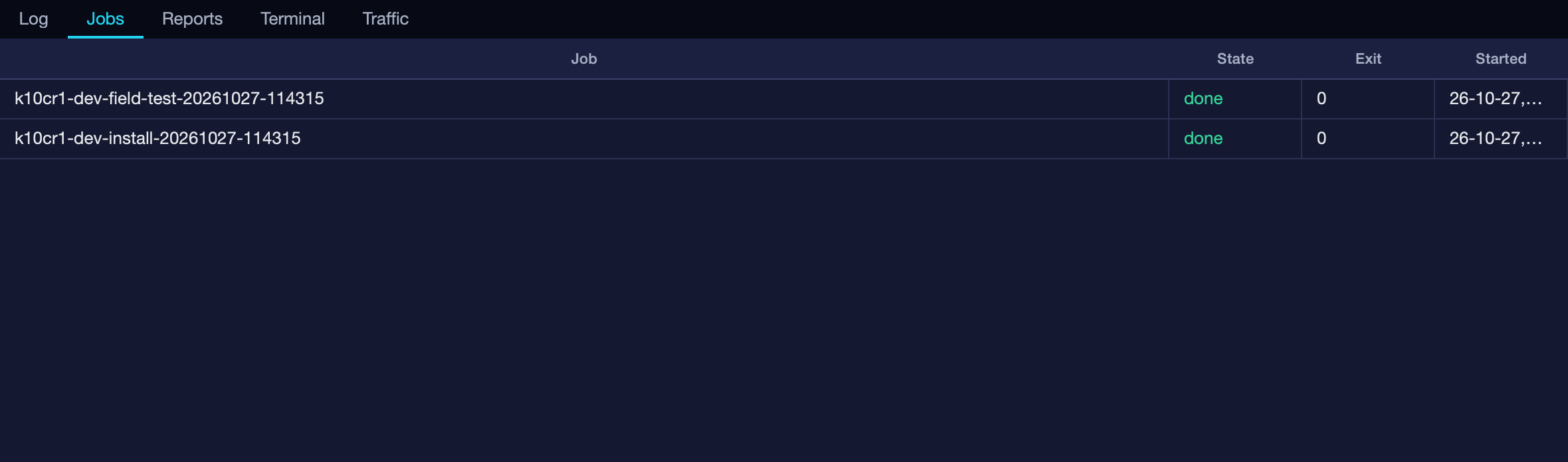
This device’s installs, updates, field tests and Terminal commands — Job, State, Exit, Started. Double-click one to follow its log in a window with a Cancel job button.
Reports
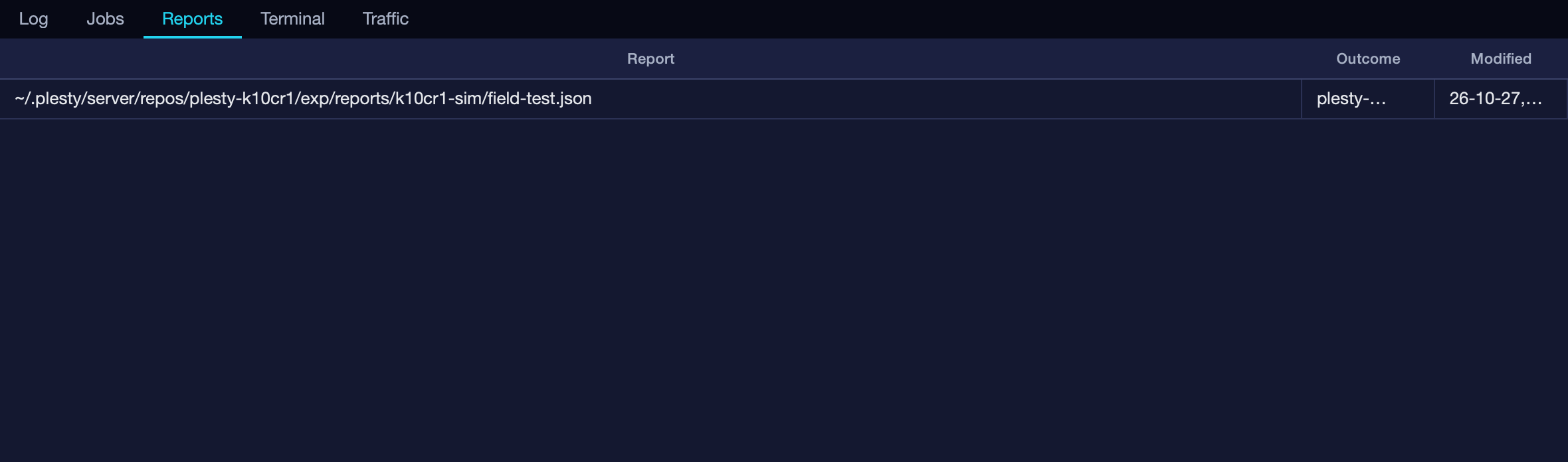
The field-test reports published for this device — Report, Outcome, Modified. See Field-test a device.
Terminal
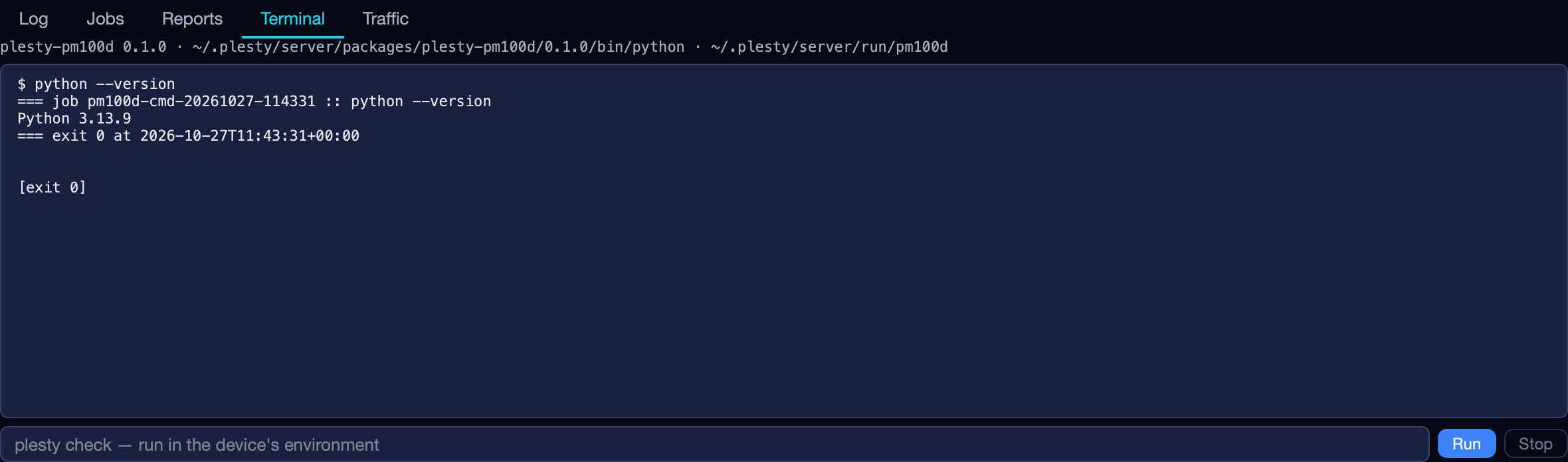
Runs one command inside the environment that serves this device, so python
and the module’s own commands are that environment’s. The line above the
output names the environment and the working folder — the checkout for a
repository install, the device’s own folder for a release. Type a command and
press Run (or Enter); Stop cancels it.
It is not a shell: there is no pipe, redirection or wildcard. A checkout is
installed without its development tools, so plesty check and pytest are
not there; python tests/field_test.py --help is.
Traffic
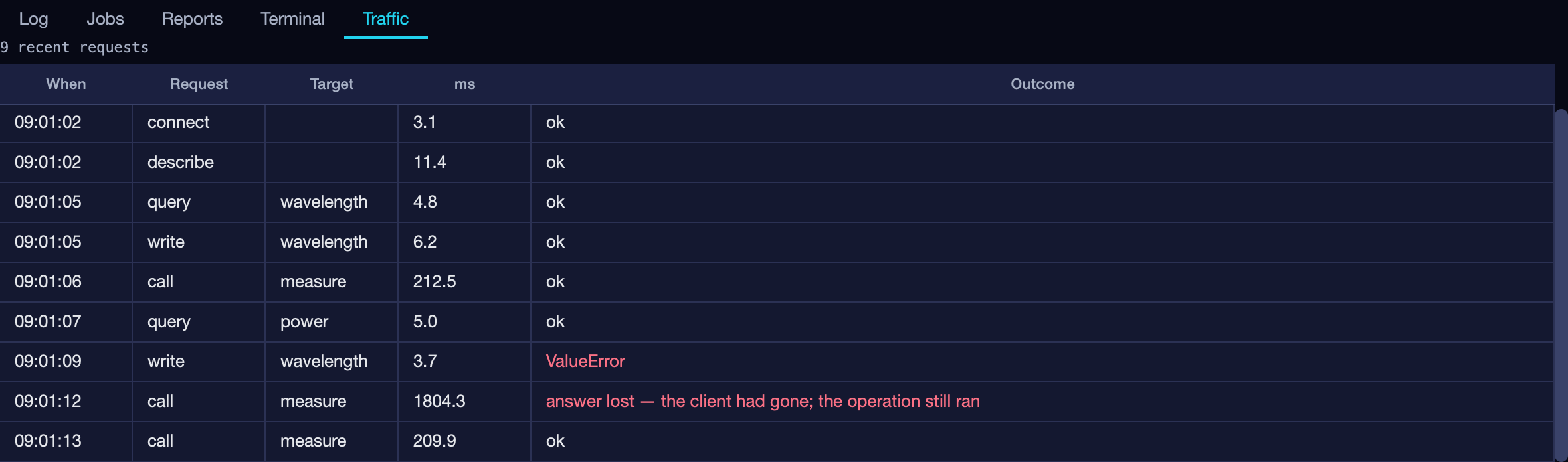
Each request the server handled — When, Request, Target, ms, Outcome. It records what was asked, not the data returned, and a failure shows its error type. answer lost marks a reply the client never received: it timed out and reconnected, while the device did the work anyway. The history reaches back as far as the log does.