Set up a bench
From an installed bench to an instrument an experiment can reach — about ten minutes, most of it downloading. The example is a Thorlabs PM100D power meter; any hub device module works the same way.
It starts where Install ends, with the console open. On a new
bench both tabs are empty, and the status line names the fleet the bench
started with, default.yaml.
1. Install the device module
A device module is the driver for one kind of instrument, from the PLESTY hub.
Hub ▸ Browse… (Ctrl+K).
Type
pm100dinto the search box and select plesty-pm100d.Under Source, keep Release (PyPI) and its newest version.
Press Install module. A window follows the installation; close it when it says done.
Installing puts the module on the bench; it does not add an instrument yet.
2. Declare the instrument
A declaration tells the bench about one instrument: a name for it, the module that drives it, and how to find it.
Press Declare
 on the
Devices card, or Device ▸ Add device… (Ctrl+N).
on the
Devices card, or Device ▸ Add device… (Ctrl+N).Package:
plesty-pm100d. Name: keeppm100d, or name it after the instrument.Args: how the module finds the instrument — for the PM100D its VISA address,
--address USB0::0x1313::0x8078::P0031744::INSTR. The module’s own documentation lists its options.Leave part of the working fleet ticked, so the bench starts it with the others.
OK.
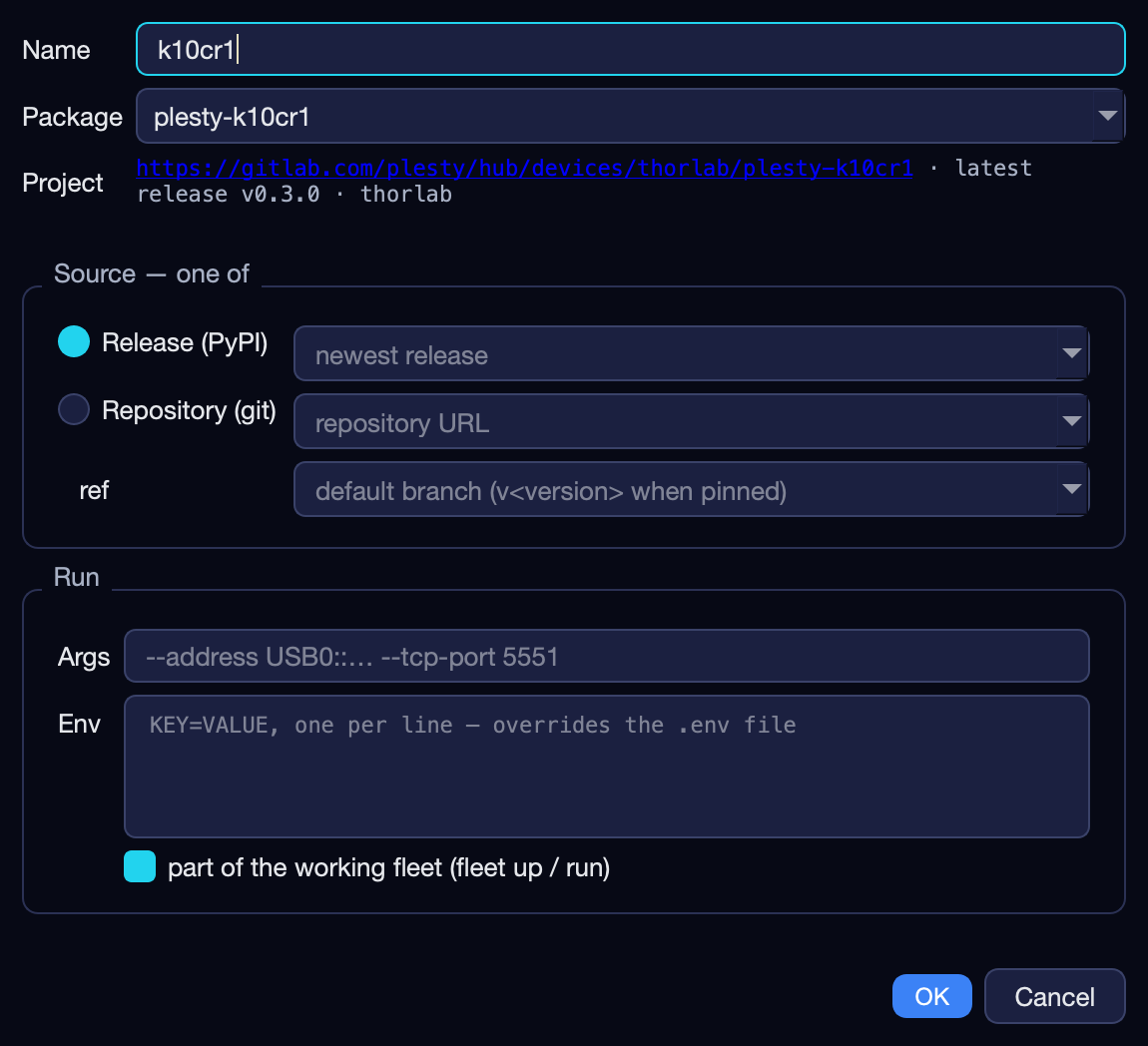
The declaration goes into the bench’s fleet file,
~/.plesty/server/fleets/default.yaml, which picks a network port for the
device — 5551 for the first one.
3. Start it
Select the row and press Start  .
The state goes from
.
The state goes from stopped through starting to running once the server
answers — not merely once its process exists.
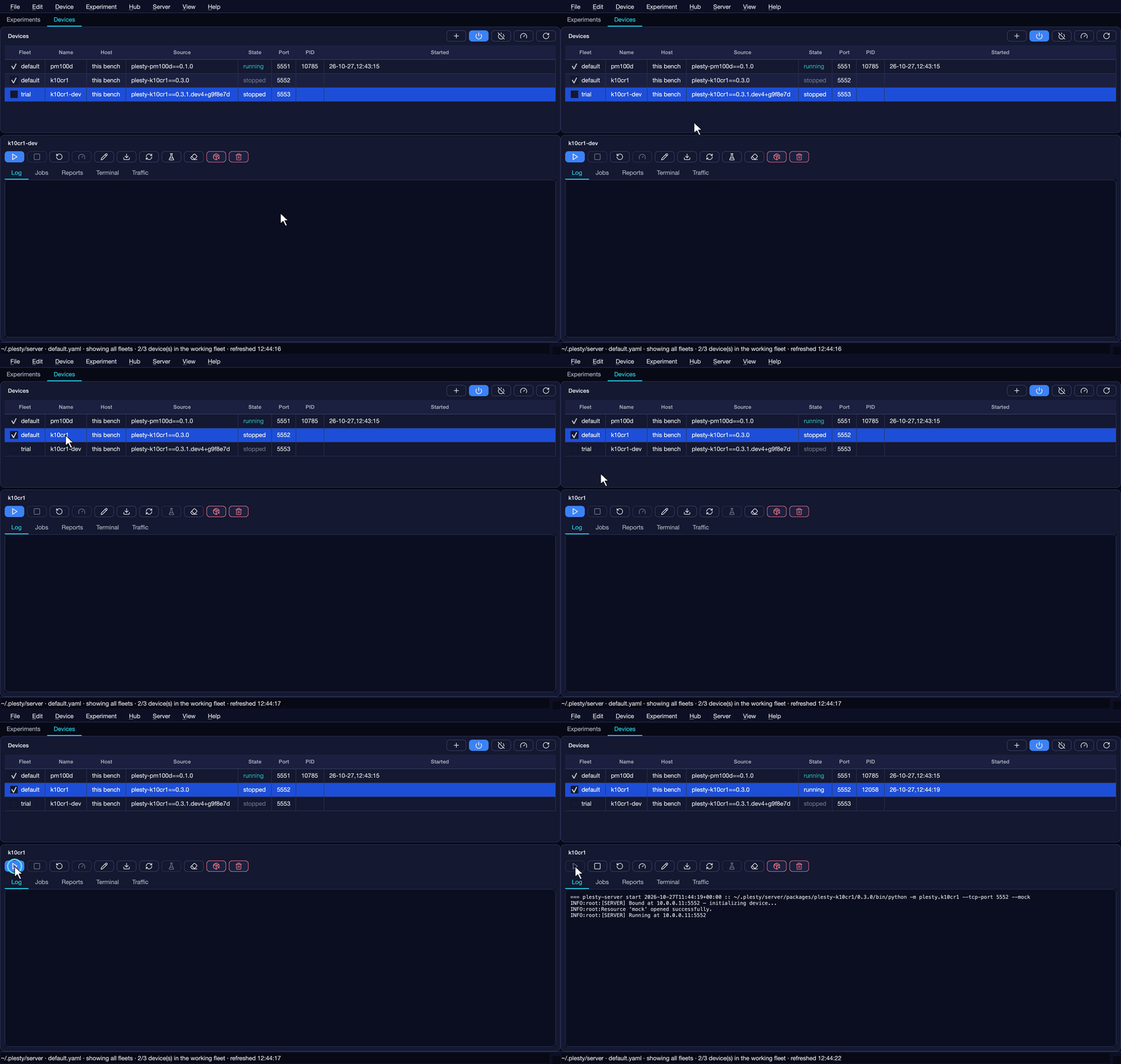
The Log pane shows what the server printed. If the state becomes exited
instead, the log says why — see When a device will not start.
4. Check that it answers
Control — press Control
 ,
tick Take control, and read or set a value by hand. See
the Control window.
,
tick Take control, and read or set a value by hand. See
the Control window.Traffic — every request the server handled, as it happens.
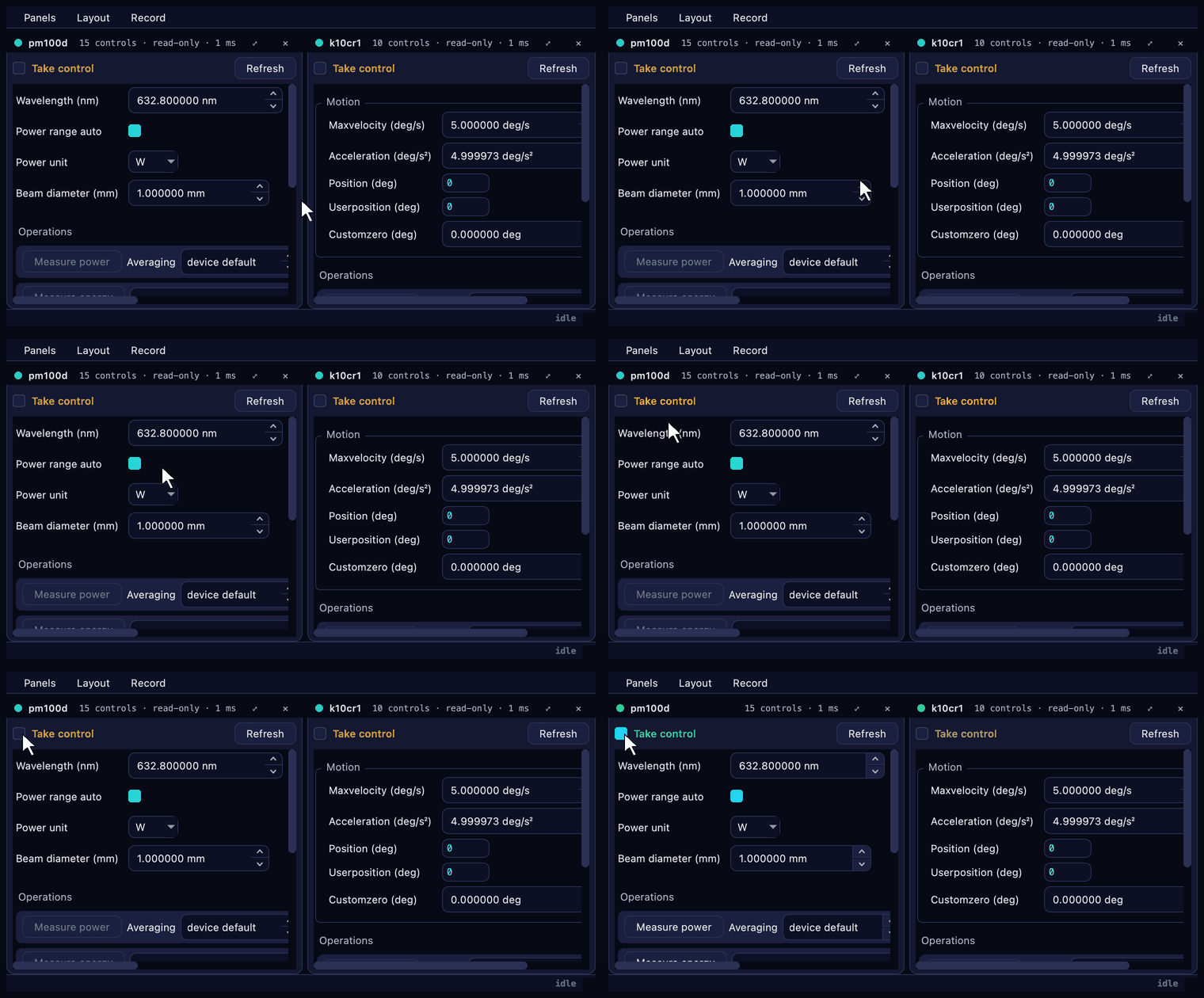
The instrument is now reachable from any experiment PC at this bench’s address and the port in the table. Nothing else is needed on the bench.
On the command line
The same steps, in a terminal on the bench:
plesty-server module install plesty-pm100d
plesty-server declare pm100d plesty-pm100d \
    --arg --address --arg "USB0::0x1313::0x8078::P0031744::INSTR"
plesty-server start pm100d        # installs first if needed; waits until it answers
plesty-server status
plesty-server log pm100d -n 50
Next
More instruments: repeat steps 1–3. Two devices may use the same module.
The devices should come back after a reboot: Keep a bench up without a window.
Test the module against the instrument: Field-test a device.
When a device will not start
What you see |
What it usually is |
|---|---|
The state stays |
The module could not open the instrument: a wrong address, the instrument in use by another program, a missing vendor driver. The Log has the driver’s own error. |
port busy when starting |
The declaration names its port ( |
|
The server was killed rather than asked to stop; the status says so when it recognises the exit code. An old module may not handle the stop request. |
An install fails on a |
A module under development needs a pre-release of |
git not found |
Only modules installed from a repository need git. A Windows bench fetches its own; on macOS or Linux, install it from the package manager. |