Menus
Every item in the menu bar, in order. An item that has a button too links to where that button is described; the forms only a menu opens are described right here, under their item.
File
Item |
Shortcut |
Does |
|---|---|---|
New fleet… |
Ctrl+Shift+N |
Start an empty fleet file and make it current. |
Open fleet… |
Ctrl+O |
Switch to another fleet file. The home stays the same. |
Save working fleet as… |
Ctrl+S |
Write the checked devices to a new fleet file you can take to another bench. |
Quit |
the system’s |
Close the console — see Closing it. |
New fleet and Open fleet first stop what the current fleet is running, after asking.
Edit
Item |
Shortcut |
Does |
|---|---|---|
Device config… |
Ctrl+E |
The selected device’s declaration and |
Fleet file… |
The whole fleet as text — below. |
|
Remove from fleet |
Drop the selected device. A running server is stopped; its environment stays. |
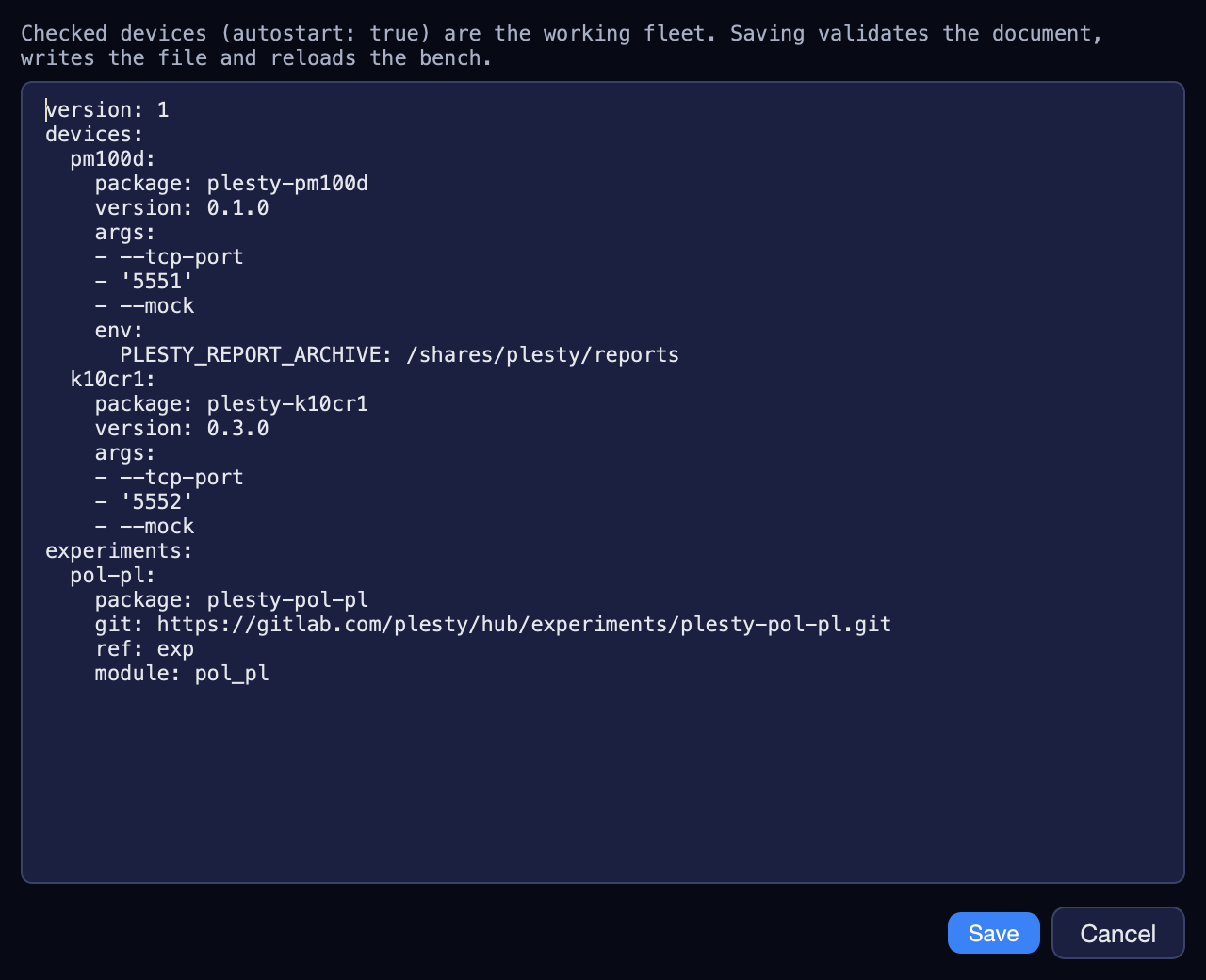
Fleet file…
The fleet file, whole, for changes the forms do not offer. Save checks it before writing — a mistake is named in the window, not saved — and reloads the bench. The keys are in Files and settings.
Device
Acts on the device selected in the Devices tab — except Add device…, which is always there. The same items, without the last three, are on the device table’s right-click menu.
Item |
Shortcut |
Same as |
|---|---|---|
Start |
Ctrl+R |
|
Stop |
Ctrl+T |
|
Restart |
|
|
Install |
|
|
Update |
|
|
Uninstall |
|
|
Control… |
Ctrl+D |
|
Field Test… |
Ctrl+F |
|
Fleet up |
|
|
Fleet down |
|
|
Add device… |
Ctrl+N |
Declare |


Experiment
Acts on the run selected in the Experiments tab — except Add experiment…, which is always there.
Item |
Shortcut |
Does |
|---|---|---|
Run / Resume |
Ctrl+Shift+R |
|
Pause / Continue |
|
|
Stop |
|
|
Abort |
|
|
Install |
|
|
Update |
|
|
Configure… |
||
Report… |
Asks What happened? and records it in the run’s journal, between the steps it happened between — the Report pane’s Add report. |
|
Watch run |
Open the experiment’s views of the run. |
|
Add note… |
One more note on the run, open or ended — below. |
|
Add experiment… |
Declare an installed experiment module — below. |
|
Remove experiment |
Drop the experiment from the fleet. Its runs stay on disk. |


Add experiment…
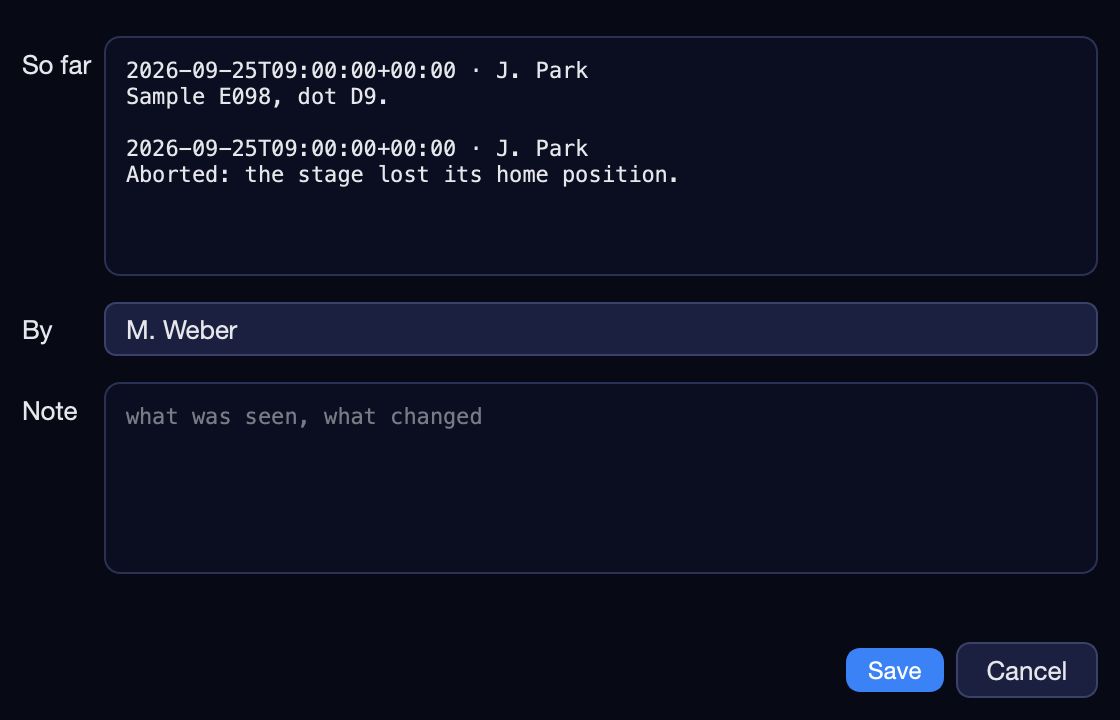
Add note…
Shows the run’s notes so far and adds one, under By — proposed from the
last operator of this bench. Notes go into the notes.txt in the run’s
folder, each with who wrote it and when; the run table’s Note column
shows the latest.
Add experiment…
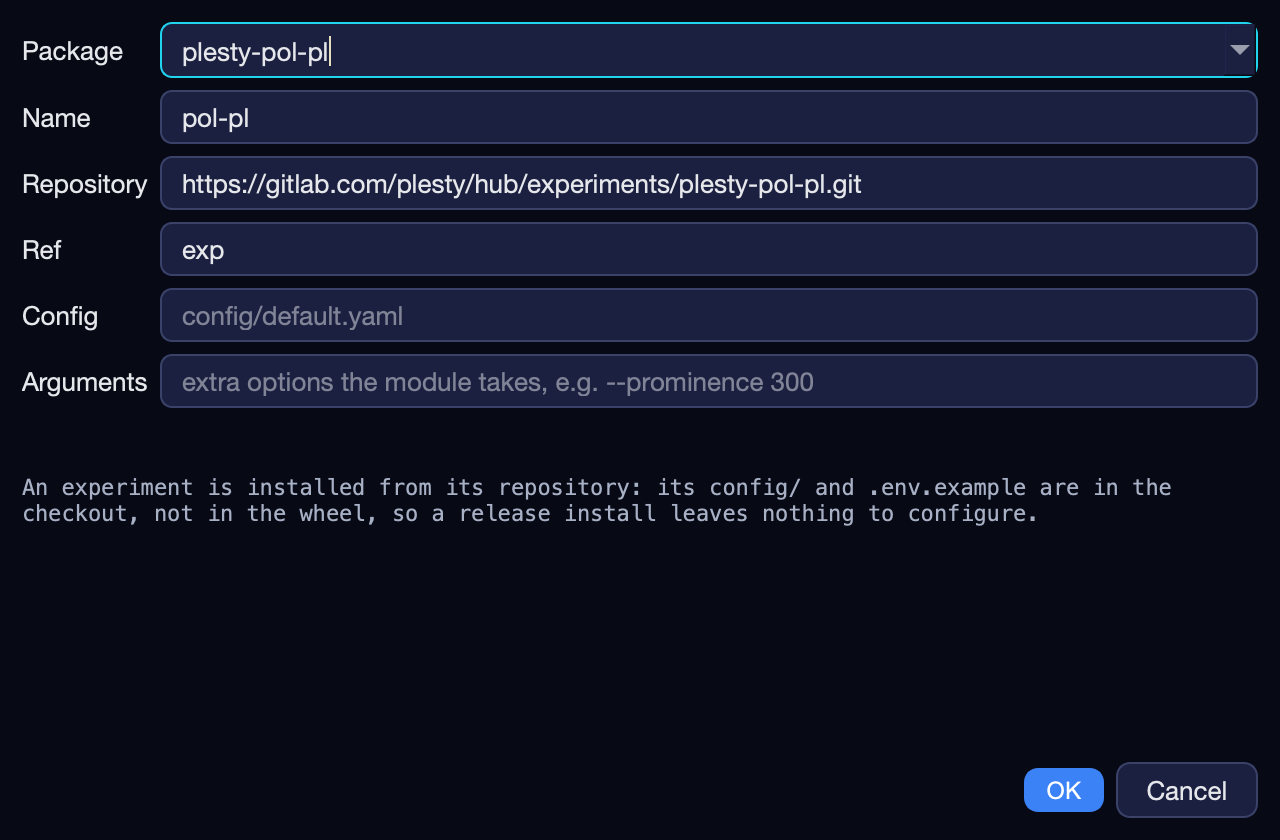
Declares an installed experiment module under a name: its Package, a
Name, the Repository and Ref it comes from, the Config file
its runs start from, and extra Arguments. Package offers only
experiment modules, and modules whose kind is not known yet; a folder loaded
with Load from… is declared by its folder. A name already
declared is refused, with a pointer to Experiment ▸ Configure…, which changes
that declaration. Create  does this for you when you pick an experiment not declared yet.
Hub
Item |
Shortcut |
Does |
|---|---|---|
Browse… |
Ctrl+K |
Browse the Hub’s modules and install one — below. |
Load from… |
Use a module’s repository already on this machine, where it is — below. |
|
Installed modules… |
Everything installed on this bench, declared or not, and Uninstall — below. |
Installing a module declares nothing: afterwards, Declare
 on the Devices
card or Create on
the Runs card puts it to use.
on the Devices
card or Create on
the Runs card puts it to use.
Browse…
The Hub’s device and experiment modules at the quantum standard. An experiment is listed only once its published check passed on plesty-sdk 0.5 or newer, which shows it publishes the settings the Configure dialog is built from; one that does not yet can still be run from a checkout with Load from…. Search by name, vendor or description, and narrow by kind and vendor; the table shows each module’s latest release, what this bench already has, and whether it passes its checks and field tests.
Choose a source — Release (PyPI) at a version, or Repository (git) at a ref — and press Install module; a window follows the installation, and the main window says how it ended. Each drop-down lists every release on PyPI and every release tag of the repository, newest first. Refresh asks the Hub again for a module published a moment ago. The walkthrough is Install and update modules.
Load from…
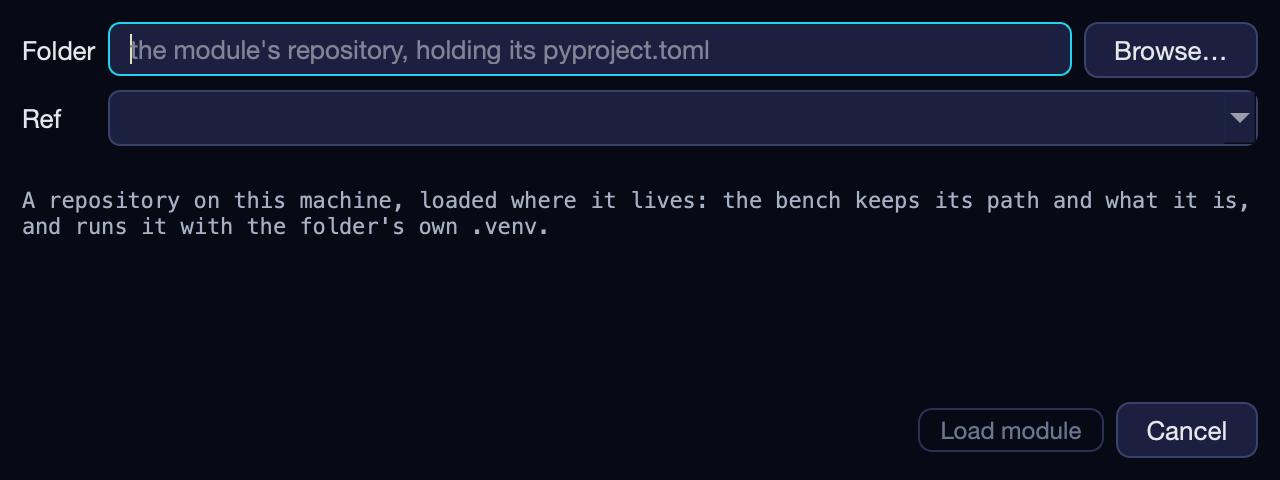
A module’s repository already on this machine — the one you are editing — used
where it is, with its own .venv. Nothing is copied.
Field |
Means |
|---|---|
Folder |
The repository. Browse… picks it. The line below says what it is, or why it cannot be loaded. |
Ref |
The branch to use. Choosing another one checks it out in the folder — refused while the folder has uncommitted changes. Left empty on a checkout that is on no branch, the folder is loaded on the commit it is on. |
Load module records it; a loaded experiment is offered in Create run as
name (local).
Installed modules…
One row per installed version of every module on this bench — installed from the Hub, from a repository, or loaded from a folder — with its kind, version, source and the declarations that use it (Used by). A module installed and never declared is listed here too.
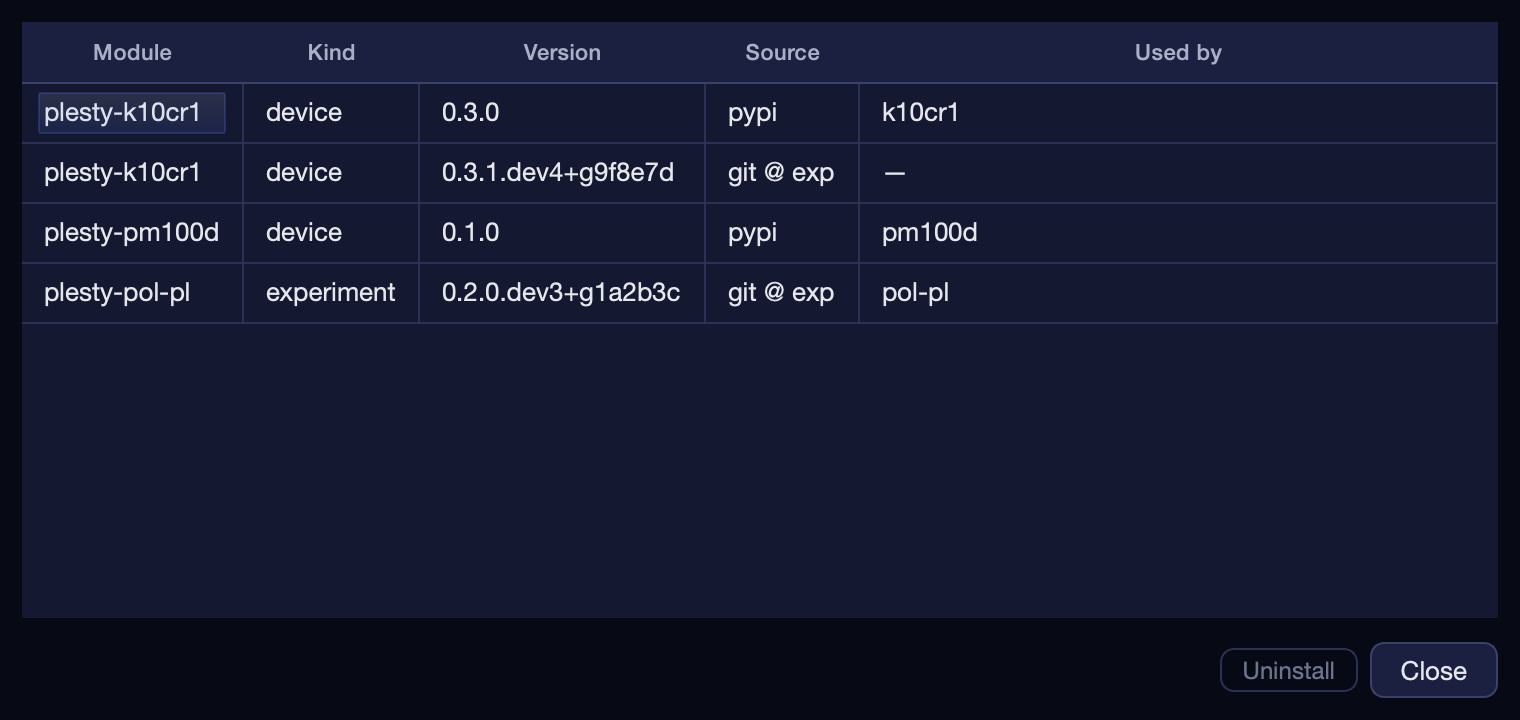
Uninstall removes the selected version. It is refused while a declaration uses it; remove that device or experiment first. A loaded folder is only forgotten: the folder itself stays.
Server
Item |
Does |
|---|---|
Configure… |
How other machines reach this bench — below. |
Start agent / Stop agent |
Let |
Stop servers outside this fleet |
Stop the device servers a fleet this console no longer has open left running; they are not in the table, so nothing else stops them. Available while there are any — the status line names them. |
Benches… |
On a master bench: the other benches whose devices this console shows — below. Greyed out on a node. |
Configure…
Save keeps the settings for the next Start agent; an agent already running keeps its old ones until you stop and start it.
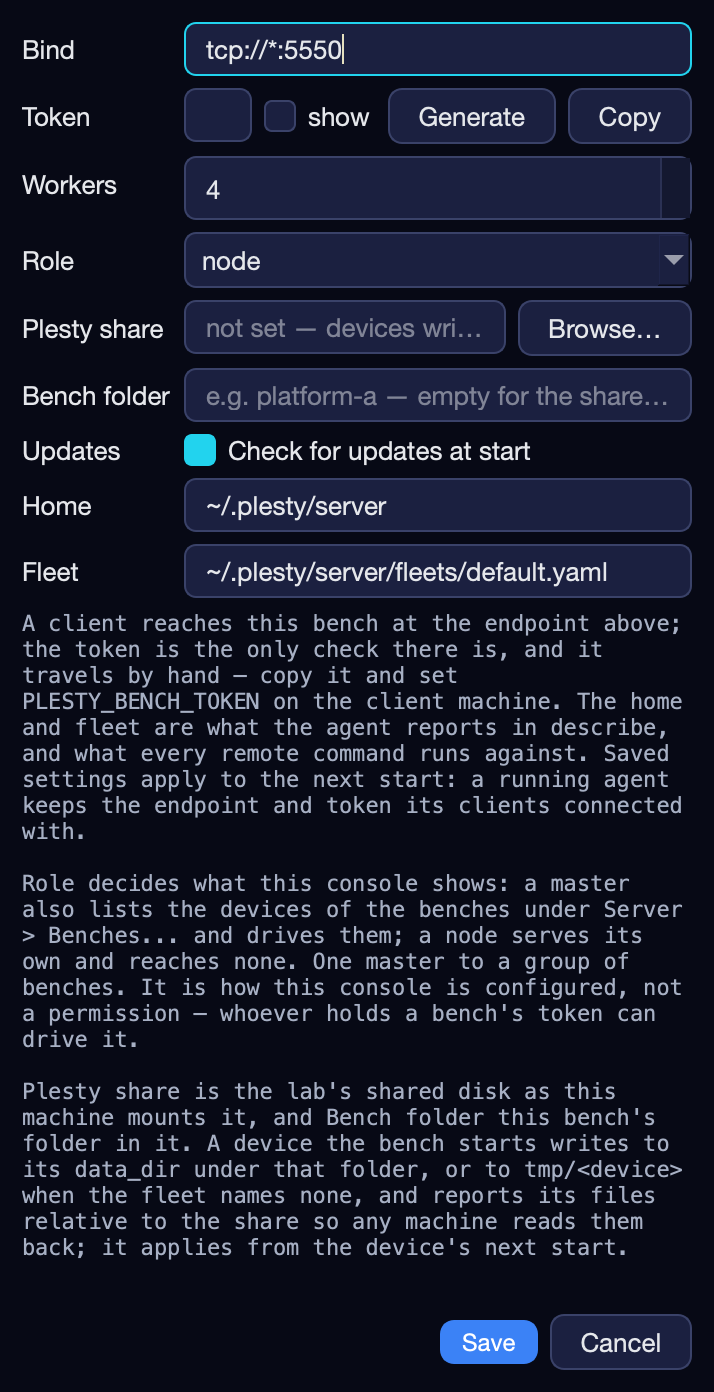
Field |
Means |
|---|---|
Bind |
Where the agent listens — |
Token |
The shared secret clients must send. Generate makes a new one, Copy puts it on the clipboard for the other machine; empty means no check. |
Workers |
How many requests it handles at once. |
Role |
node (the default) or master — see Several benches. |
Plesty share |
The lab’s shared disk as this machine mounts it ( |
Bench folder |
This bench’s folder in the share ( |
Updates |
Check for updates at start: once a day, the console asks PyPI for a newer PLESTY Bench when it starts and names it in the status bar. On by default. |
Home, Fleet |
This bench’s folder and fleet file, for reference. |
Benches…
A row per other bench — the Name this console calls it, the Address its
agent listens on (lab-bench-04:5550), and its Token — with Add and
Remove. The first row is this bench itself. Their devices then appear in
the device table, their bench named under Host.
View
Item |
Shortcut |
Does |
|---|---|---|
Fleet ▸ All / a fleet / a bench |
Which devices the device table shows — each fleet of this bench and each other bench is ticked on its own, so any mix shows; All ticks or clears them all, and is the default. The menu stays open while you tick. The Fleet column names the fleet of each of this bench’s rows. A device declared through the agent shows at the next refresh. |
|
Refresh |
F5 |
Re-read the bench now. |
Jobs… |
Show the selected device’s Jobs pane. |
|
Messages… |
Every message of this session, in a window. |
|
Control window |
The Control window with every running device. |
Help
Item |
Does |
|---|---|
Welcome… |
The page the first start opens: install the demo and run it on this PC — see The welcome demo experiment. |
Report a problem… |
A report to paste into a new issue — see Report an issue. |
Check for updates… |
The version installed and the newest on PyPI, and Update — see Upgrade a bench. |
About |
The running version: how and where it is installed, its Python, the last update and how it went, and a link to this version’s changes. |
Report a problem…
A report of this bench to file as a new issue: Title, What happened, and What is sent, the full report to read before it goes. Copy, Save… or Copy & open tracker; the bench sends nothing itself. What the report holds, what it leaves out and how to send it: Report an issue.
Confirmations
Anything that stops, removes or deletes asks first, with No as the default: Remove from fleet, Uninstall, Clear log, Fleet down, Stop run, Abort run, Delete run, Remove experiment, and closing the console while something runs.