Overview
The console is the bench’s window: everything the bench does — installing modules, starting device servers, running field tests and experiments — is a button or a menu item here. This part of the documentation goes through it element by element. For a task from start to finish, see Usages; for the same actions typed in a terminal, see CLI.
Opening it
Windows — Start ▸ PLESTY Bench, or the desktop shortcut if you asked the installer for one.
macOS — PLESTY Bench in Launchpad or
~/Applications.Linux — PLESTY Bench in the applications menu.
Any terminal —
plesty-server gui.
The console opens the fleet it had open last time. A fresh bench starts on an
empty fleet of its own, <home>/fleets/default.yaml, and its first start
opens Welcome, which offers to install the demo and run it on this PC —
see The welcome demo experiment.
The window at a glance
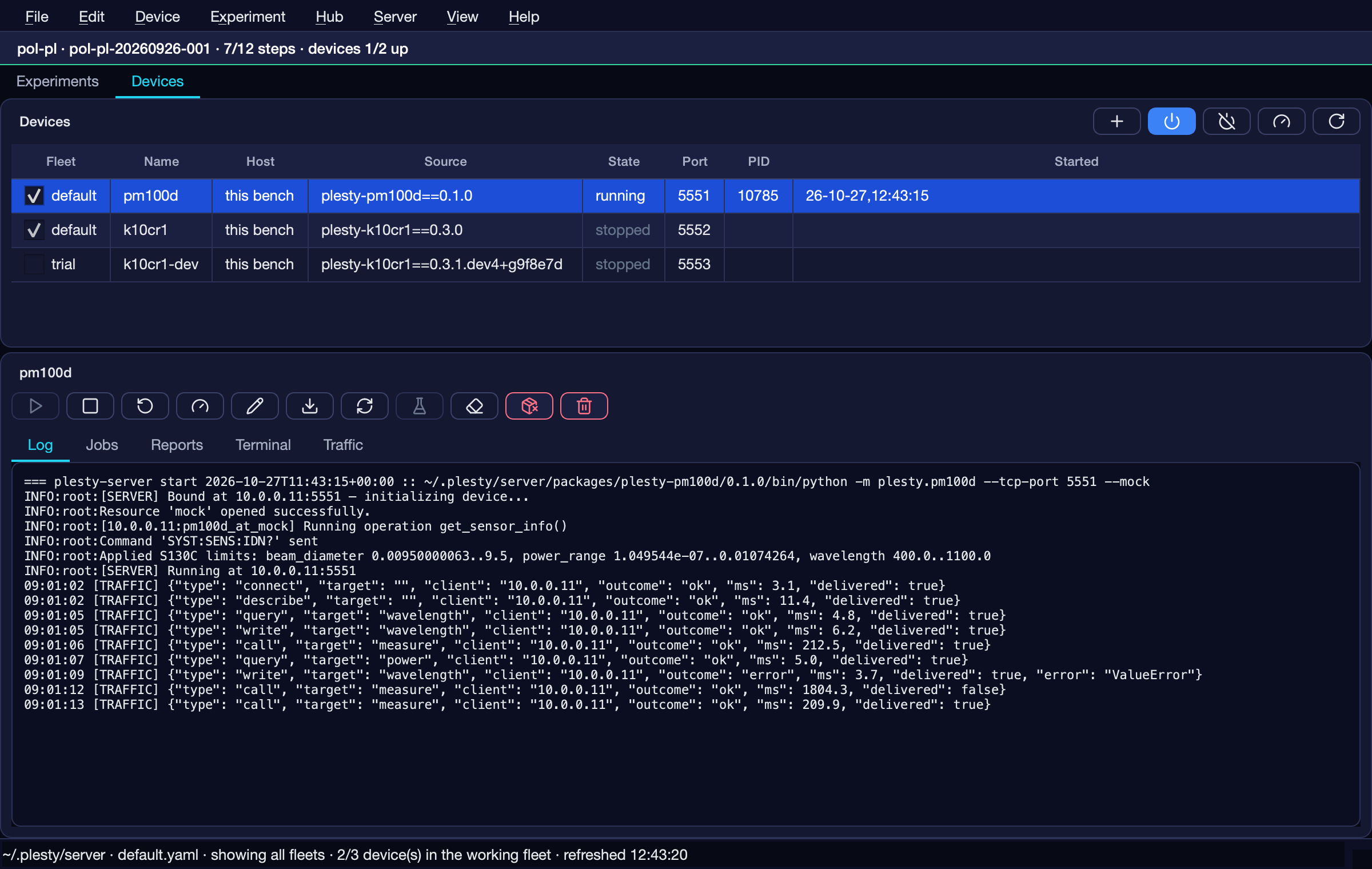
The console on the Devices tab, with pm100d selected.
From top to bottom:
Part |
What it is |
Page |
|---|---|---|
Menu bar |
File, Edit, Device, Experiment, Hub, Server, View, Help |
|
Run banner |
Only while a run is going: its experiment and run, how far it has got, and how many of the devices it uses are up — pol-pl · run-0007 · 41/90 steps · devices 2/3 up. Whichever tab is in front. |
|
Tabs |
Experiments (in front when the console opens) and Devices |
|
Upper card |
A table: devices on the Devices tab, runs on the Experiments tab |
|
Lower card |
The row selected above: its buttons and its panes |
|
Status line |
What the bench is doing — see below |
The cards’ buttons are icons: hold the pointer over one for its name and what
it does. These pages show each icon beside its name, Fleet up
 for instance; a red
one removes or deletes something, and asks first.
for instance; a red
one removes or deletes something, and asks first.
Everything refreshes by itself once a second; Refresh
 or F5 re-reads at
once.
or F5 re-reads at
once.
The status line

Left to right: the bench’s home folder, the fleet file in use, which fleets the device table shows (View ▸ Fleet), how many devices are in the working fleet, where the agent listens (only while it runs — see Server menu) and when the window last looked.
Messages appear to the left of it and fade after 20 seconds; View ▸ Messages… keeps them all. Every install, update and uninstall ends in one: green when it worked, red with the last line its job wrote when it did not. A message stays on one line; hold the pointer over it for the whole text. A failure stays in red with a Dismiss button until you dismiss it or the next action succeeds — never as a pop-up, because an install runs for minutes and a pop-up would freeze the window until somebody came back to click it.
When a newer PLESTY Bench is on PyPI, the right end of the line says Update available: plesty-bench 0.5.1; clicking it opens Help ▸ Check for updates…. The console asks once a day, when it starts; Server ▸ Configure… turns that off.
Closing it
Closing the window stops everything it runs — every device server, every job, and the agent — after a confirmation that lists them. A bench that has to keep its devices running with nobody logged in runs without a window: see Keep a bench up without a window.
In this part
The Devices tab — the device table and its buttons, with the forms they open (Declare, Device config, Field test) and the Control window; the Log, Jobs, Reports, Terminal and Traffic panes.
The Experiments tab — the run table and its buttons, with Create run and Configure; the Log, Data, Report and Visualization panes.
Menus — every menu item and its shortcut, with the forms only a menu opens: Fleet file, Add experiment, Hub, Load from, Installed modules, Server configuration, Benches, Report a problem.