PLESTY Bench
PLESTY Bench is the program on the lab PC your instruments are plugged into — the bench. From one window it installs the drivers for your instruments, keeps them running and reachable on the network, tests them against the hardware, and runs whole measurements across one or several benches, keeping every run’s data and report together.
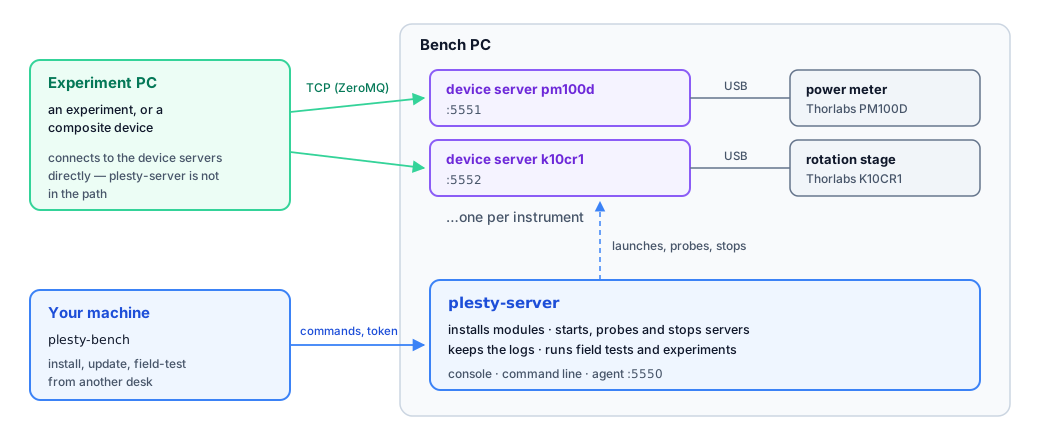
Each instrument is served by a device server; experiments talk to those servers over the network. PLESTY Bench runs them, and everything around them:
Where to start
You want to |
Read |
|---|---|
install PLESTY Bench |
|
see a measurement on one PC, with no instrument attached |
|
set up a new bench and get a first instrument running |
|
see a whole measurement across two benches, start to finish |
|
run a measurement of your own |
|
know what a button, menu or field does |
|
do it in a terminal, a script or from another computer |
The documentation has three parts:
GUI — the window, element by element: the Devices and Experiments tabs, every menu, every dialog, the Control window.
Usages — tasks from start to finish: setting up a bench, installing modules, field tests, experiments, remote work, running without a window, upgrading, reporting an issue, uninstalling.
CLI — for advanced users:
plesty-serveron the bench,plesty-benchfrom another machine, and every file and setting.
Reference and internals
API reference — the
plesty.serverandplesty.benchpackages.Design and internals — for contributors, and for anyone who needs to know why the bench behaves as it does: the architecture, the process model, ports, the installer, the agent, experiment runs, the platform differences and the release machinery.
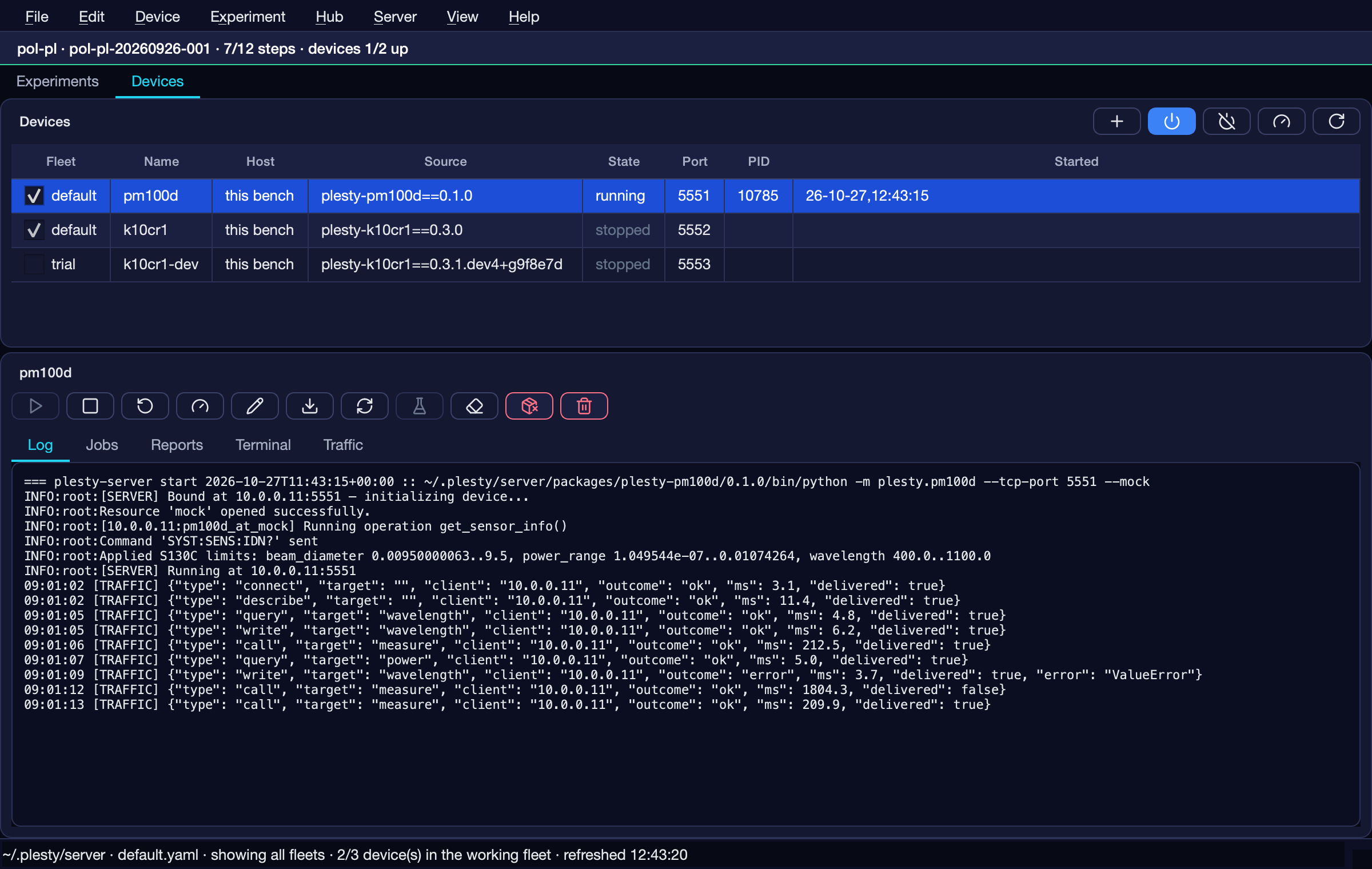
The images in these pages are the real console, rendered by
docs/imgs/gui/capture.py from a demo bench running the PM100D and K10CR1
modules’ own simulators.